Audit Trails
Audit Trails contains the following sections:
Set Up Advanced Organization Audit
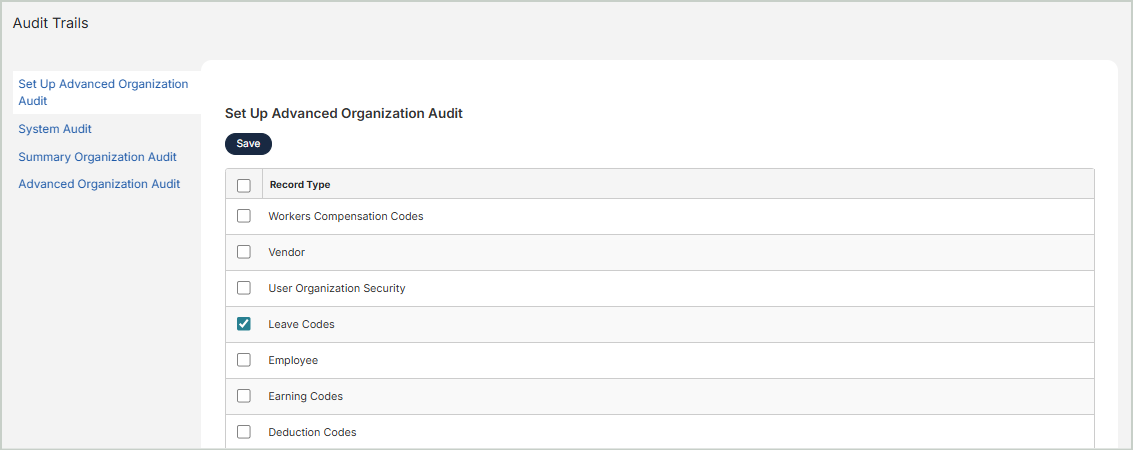
Select the record types you want the system to audit.
When you select a Record Type and Save, the system begins collecting detailed information showing what information was added, what was changed (displaying both before and after changes), who made the change, and when the change was made.
Clearing the checkbox next to a Record Type stops the system from collecting the information from that point forward.
System Audit
This section lists administrative functions performed in the system and for all organizations. This includes activity such as the addition, modification, or deletion of User Defined Fields and login information.
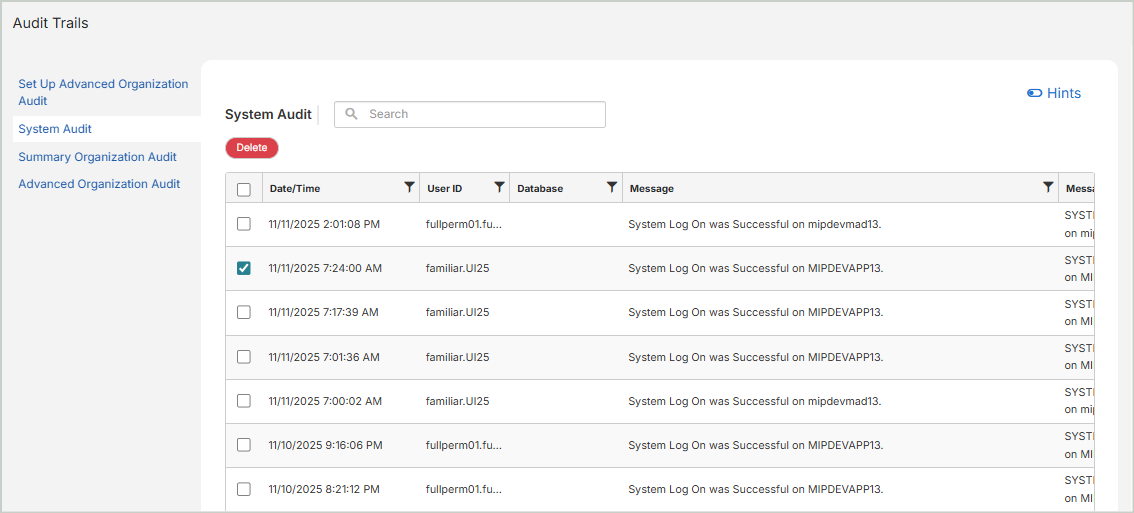
Date/Time: The date and time the activity was logged
User ID: The user that performed the activity
Database: The organization in which the activity was performed. If the user was logging in or off, this cell is blank.
Message: The description of the activity
Message Type: A code indicating the type of message that's listed in the Message column
You can Delete selected rows, but note that this is irreversible. Once an activity row is deleted, it will no longer be available in any Audit Trail.
Summary Organization Audit
This section lists organization related user activity. This includes activity such as entering and posting transactions.
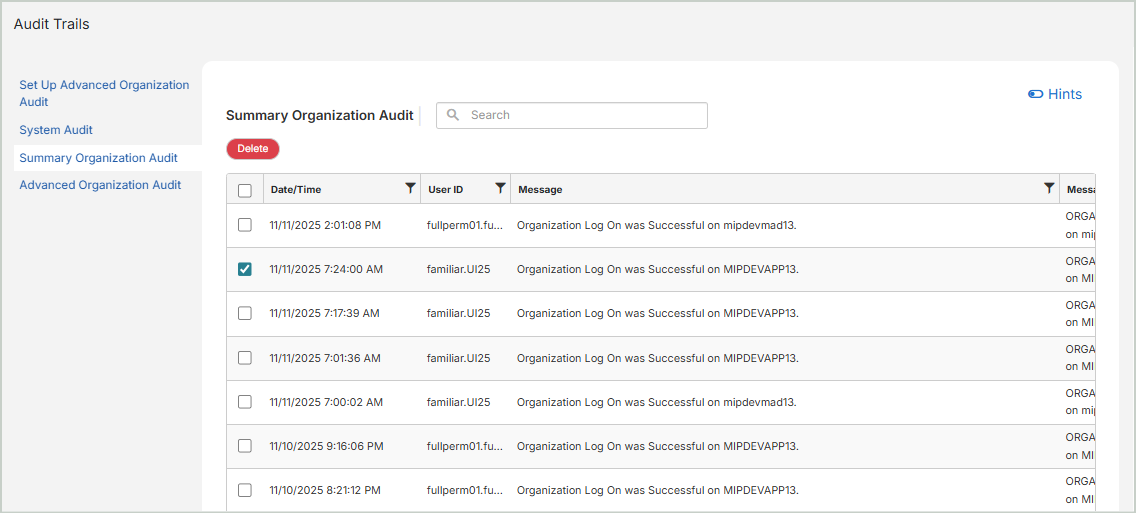
Date/Time: The date and time the activity was logged
User ID: The user that performed the activity
Message: The description of the activity
Message Type: A code indicating the type of message that's listed in the Message column
You can Delete selected rows, but note that this is irreversible. Once an activity row is deleted, it will no longer be available in any Audit Trail.
Advanced Organization Audit
This section displays system information that was selected to be recorded through the Set Up Advanced Organization Audit section.
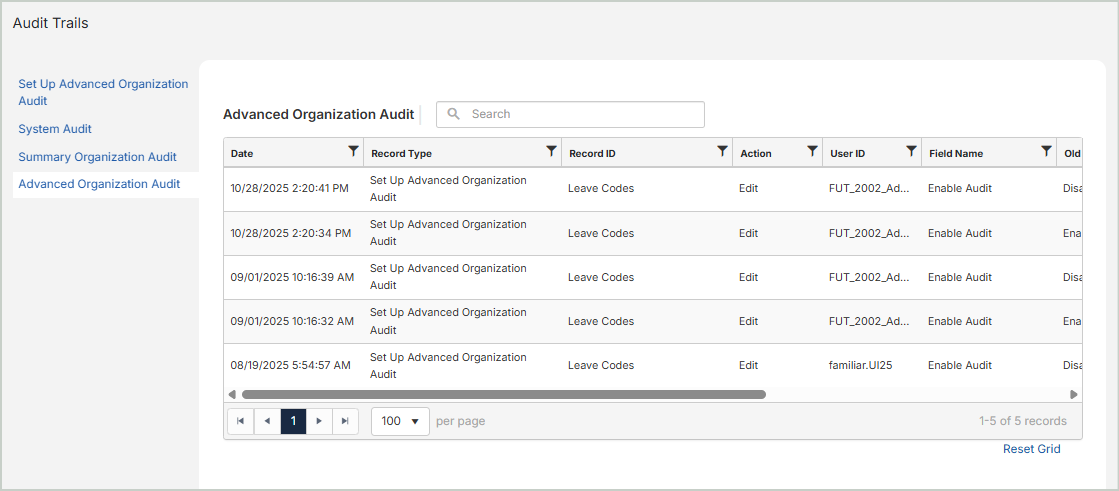
Date: The date and time the activity was logged
Record Type: The name of the form where the change occurred. If the name is hyphenated, the name of the Tab where the change occurred displays as well. For example, Set Up Advanced Organization Audit or Customer - Shipping Address.
Record ID: The identity of the record that was changed, such as Customer, ABC, or AAA.
Action: A code that indicates the type of action that occurred: Add, Edit, or Delete.
User ID: The User ID of the user who performed the action. Note that {database}_{tenant}_Admin (MIP Cloud) identifies when there are system processes that occurred using the system authentication. Also, on rare occasions, these identifiers will appear after performing an activity with your permission using the system authentication, such as database updates and data work.
Field Name: The name of the field where the change occurred, such as Enable Audit or Shipping Phone.
Old Value: The data that was in the field before it was added or changed, such as Disabled or (555) 555-5555. Note that a blank field displays when a new entry is added or when an existing data field was intentionally left blank.
New Value: The data that appears in the field after it was added or changed, such as Enabled or (999) 999-9999. Note that a blank field displays when an existing entry is deleted or when a new data entry field was intentionally left blank.
Associated Record ID: The secondary column associated to the Record ID that was changed, such as <Billing>AAA (Shipping Address Code and Customer ID) or <PostOffice> S (Address Code and Address Code Type). Note that a blank field displays when there is no association for the Record ID.