Using Browser Split View
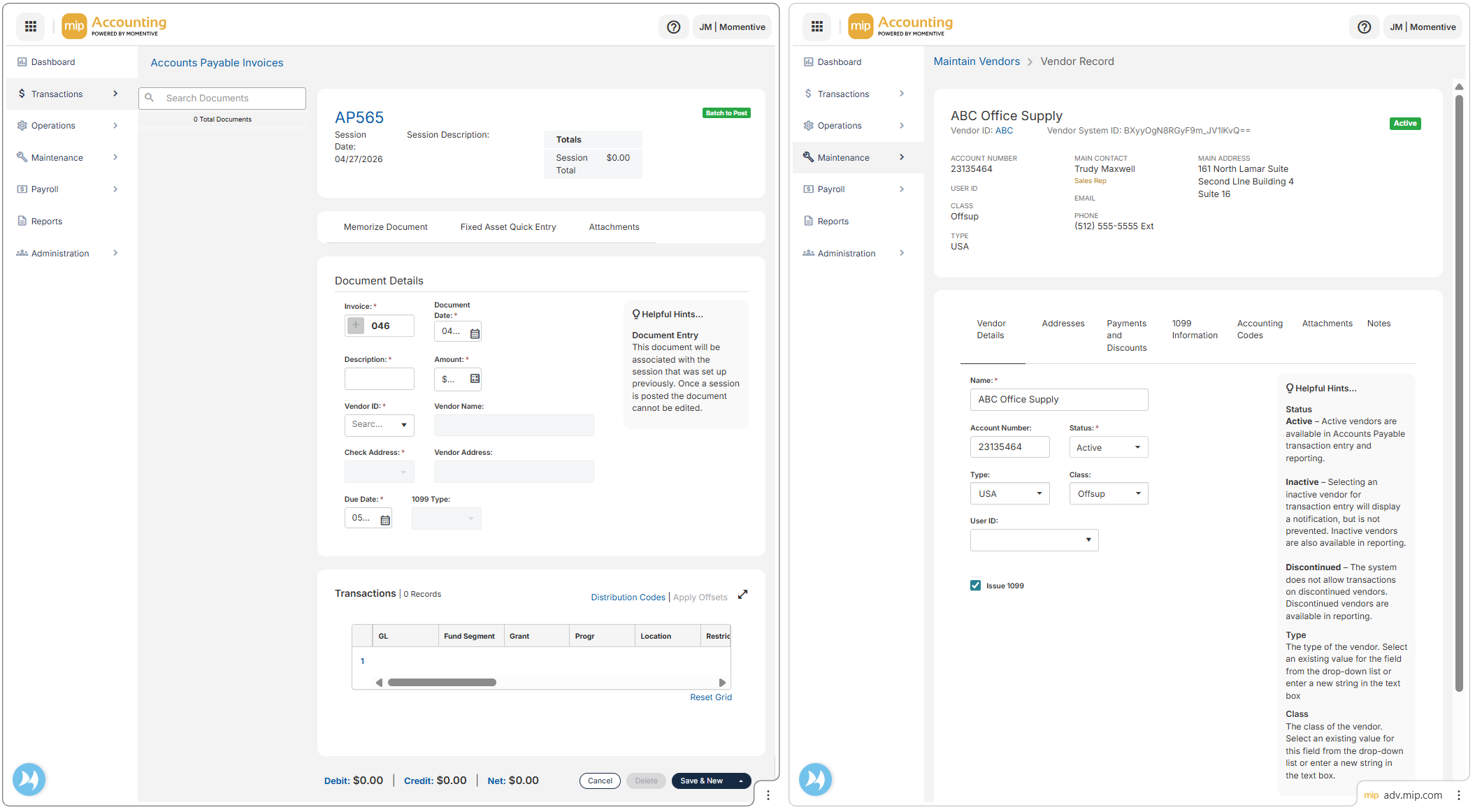
If you're used to working in multiple tabs in MIP Classic, you can achieve the same workflow in MIP Modern using the split view feature built into Chrome and Edge. This lets you view and work in two MIP tabs side by side.
What is Split View?
Chrome and Edge both let you open a link in a "split view" - two panes side by side within the same browser window. Both panels show live, fully interactive pages of MIP Modern that you can work in simultaneously. This eliminates the need to toggle between tabs.
Watch this video overview to learn how to utilize split view in MIP.
How to Open a Split View
It only takes a few seconds once you know where to look. Here are two ways to get there:
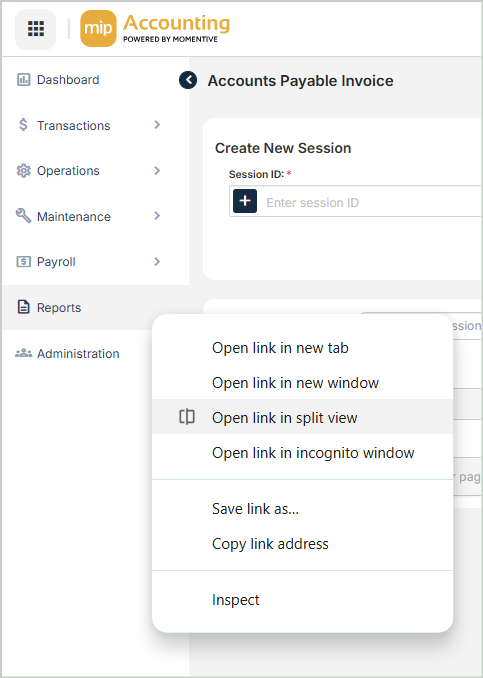
Option A - Right-click any navigation link in MIP
-
Right-click any menu item in the MIP left navigation (e.g. Transactions, Reports, Maintain Vendors)
-
Select Open link in split view from the context menu
-
MIP will open a second panel to the right - both panels are fully interactive
Option B - From the browser toolbar (Chrome or Edge)
-
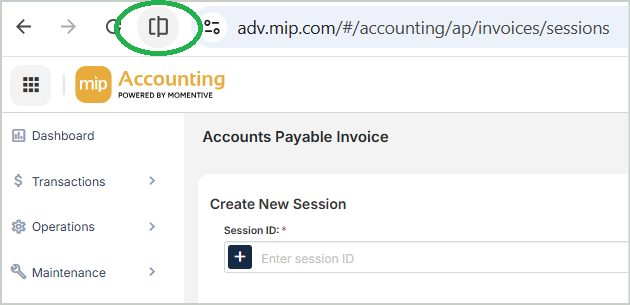
Navigate to the first page you want to work in
-
Click the split view icon in the toolbar (two overlapping rectangles) to open a second pane
-
Navigate to your second MIP page in the new pane
When Should I Use This?
Split view is helpful when you need to reference one page while working in another or compare information across two pages. Common use cases where this really shines...
-
Transaction + vendor record - Enter an AP invoice on the left while viewing the vendor's full record or payment history on the right. No more toggling.
-
Fix setup data mid-entry - Noticed a missing chart of accounts code or vendor record while entering a transaction? Open it in the split pane, fix it, and return without losing your work.
-
Side-by-side reporting - Run two reports simultaneously - compare current year vs. prior year, or adjust report builder settings while previewing the output live.
-
Budget vs. actuals - Pull up prior-year actuals on one side while entering or reviewing your current budget on the other. Great for discrepancy investigations too.
Tips
- You can resize the split panes by dragging the divider between them.
- Each tab operates independently - changes you make in one tab will not affect the other.
- Exit split view by closing one of the tabs or clicking the split view button in your browser toolbar.
For more information, see Using Split View in Chrome (Google Help Center) or Using Split Screen in Edge (Microsoft Support).