Auto-Close Encumbrances
Close encumbrances simultaneously instead of liquidating encumbrances one vendor at a time. You can close out the encumbrance ledger cleanly at the end of the budget cycle. Also, if policy requires that encumbrances be reinstated for the next budget cycle, you can simultaneously generate an encumbrance session that will reverse the closing session or exclude encumbrances from the reversing session.
The Auto-Close Encumbrances process will post entries necessary to bring all of the encumbrances selected to a zero balance as of the “Close as of Date". So if you close an encumbrance that was posted in a prior year and that encumbrance should still be open, the activity created by the Auto-Close process could cause the current year reports to become inaccurate. As a matter of practice, you should always close encumbrances no later than the end of the budget cycle they relate to.
In this topic:
Create a New Session
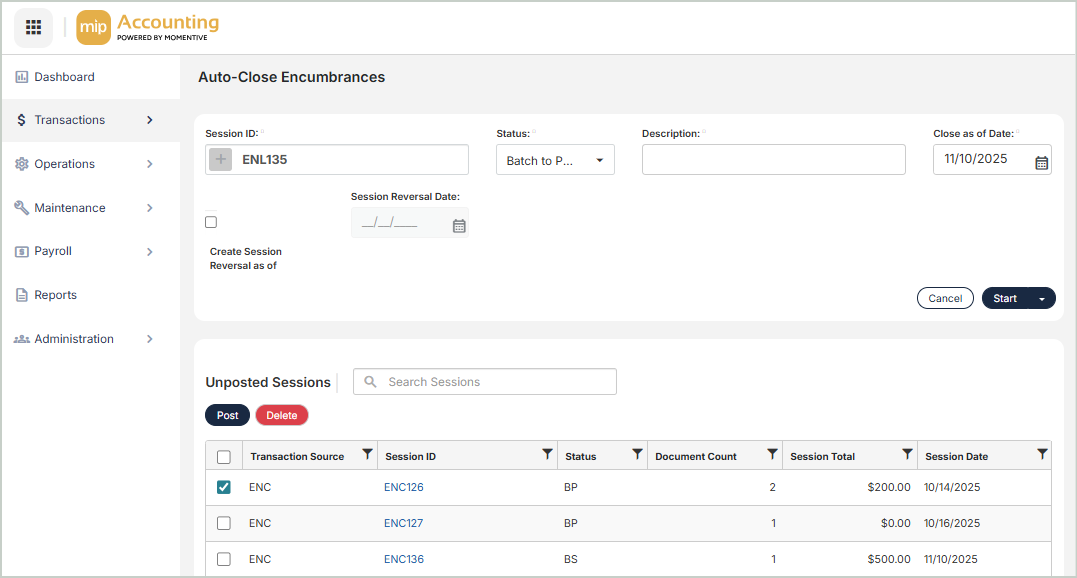
To create a new session, complete the fields at the top of the page.
Session ID: Enter a value for the Session ID, or select the + button to generate one automatically. The Session ID links each transaction to its session, allowing you to track the origin of any entry.
Status: Select the session status:
-
BP (Batch to Post) - Runs accounting validations against the session transactions.
-
BS (Batch to Suspend) - Suspends validations and keeps the session as a work-in-progress. Sessions with this status can't be posted until the status is changed to BP.
Description: Enter a description for the session.
Close as of Date: The Auto-Close Encumbrances process will post entries necessary to bring all of the encumbrances selected to a zero balance for reporting purposes as of this date.
Create Session Reversal as of: Optionally, select this checkbox to create a session reversal as of the selected date of all or a portion of the encumbrances that you will close. This is used to automatically close the encumbrances out on the last day of the old fiscal year and re-enter them on the first day of the new fiscal year.
Session Reversal Date: Enter the date that you'd like the reversal to occur.
Start: Select to proceed to the Auto-Close Encumbrances selection.
Select Encumbrances to Close
Select an Encumbrance to close by selecting the checkbox next to the encumbrance. Once you've chosen your encumbrances, select Auto-Close.
Every Encumbrance selected must pass a validation in order for the liquidation and reversing session to occur. If a single encumbrance does not pass the validation, the system will not close any of the Encumbrances selected. You might try selecting smaller batches to process.
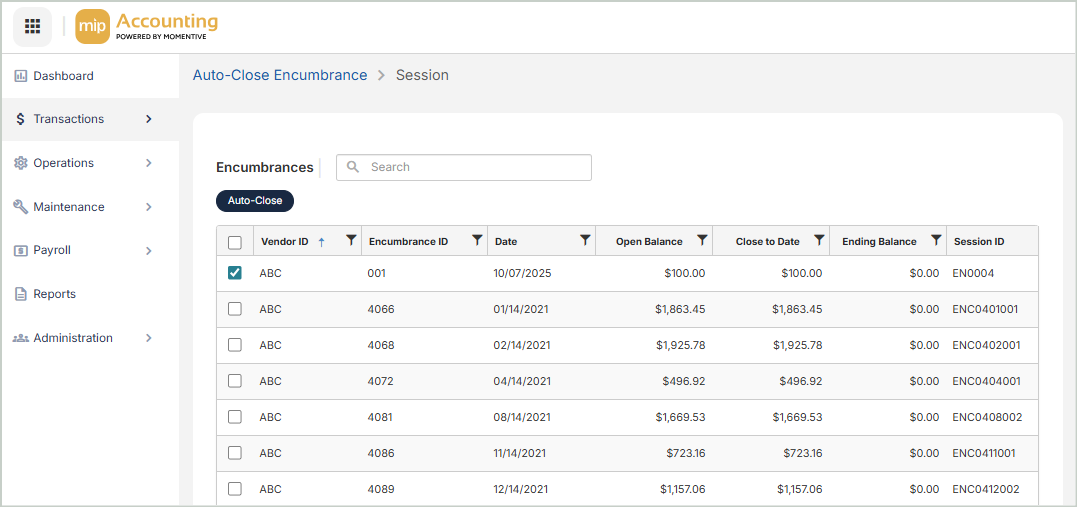
The Auto-Close Encumbrances grid includes the following columns:
Reverse: This field only displays if the "Create Session Reversal as of" checkbox was selected on the sessions page. If the encumbrance is selected in the grid, the system displays "Yes" to indicate that the encumbrance will be included in the session reversal. To exclude the encumbrance from the session reversal, simply unselect this checkbox for each item.
Vendor ID: The vendor ID associated with the open encumbrance
Encumbrance ID: The encumbrance ID associated with the open encumbrance
Date: The last document date for the open encumbrance
Description: The document description of the open encumbrance
Open Balance: The balance amount the encumbrance is carrying, without regard to date constraints. This balance reflects all of the encumbrance's activity.
Close to Date: The amount being applied to the open encumbrance, from the beginning of time through the close encumbrance as of date. Note that any existing activity beyond this date will not be considered.
Ending Balance: The amount needed to close the encumbrance, without regard to date constraints
Session ID: The original document’s session ID
Post & Manage Sessions
The Unposted Sessions grid displays all sessions that haven't been posted. From this grid, you can view, edit, or post sessions. After the session is processed but before it's posted, you can edit each Encumbrance through Transactions > Encumbrances > Liquidate Encumbrances for the close process and Transactions > Encumbrances > Encumbrances for the reversal session.
-
Post - To post a session, select it from the grid, then select Post. You can only post sessions that have a status of BP.
-
Delete - To delete a session, select it from the grid, then select Delete. This action cannot be undone.
Once a session is posted, you can find it on the Manage Sessions page.
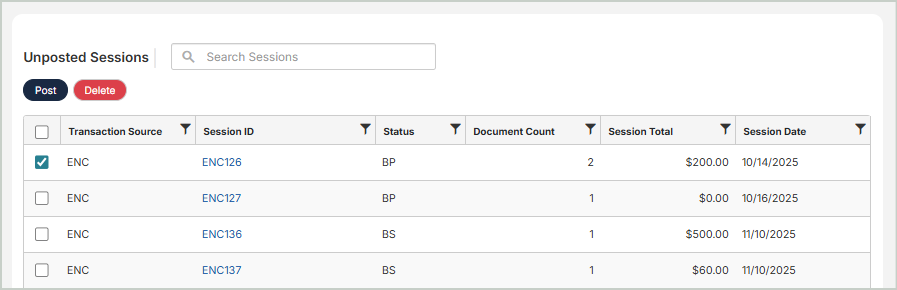
The Unposted Sessions grid includes the following columns:
Session ID: The ID of the session. Select a session ID to view or edit the session.
Status: The status of the session (BP or BS)
Document Count: The number of documents in the session
Session Total: The total dollar amount of invoices in the session
Session Date: The date of the session
Description: The description of the session