Liquidate Encumbrances
Liquidate encumbrances that have been previously created in MIP. These liquidations do not record expenses to the general ledger, they only reduce amounts that have been previously encumbered.
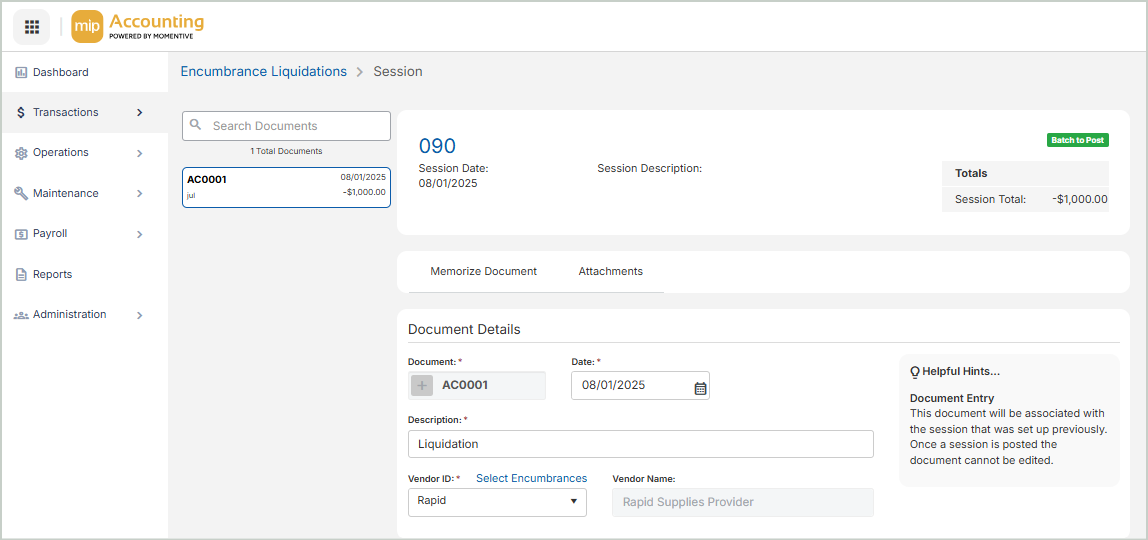
Enter Document Details
To edit or view an existing document, select it from the Document List on the left-hand side of the page.
To create a new document, enter the Document Details:
Document: Enter a unique ID for the encumbrance liquidation, or select the + button to generate one automatically. We recommend using only alphabetic characters (A–Z) or numeric characters (0–9) for your entry.
Date: Enter a date specific to this document.
Description: Enter information you'd like to record about the liquidation.
Vendor ID: Select the vendor associated with the encumbrance.
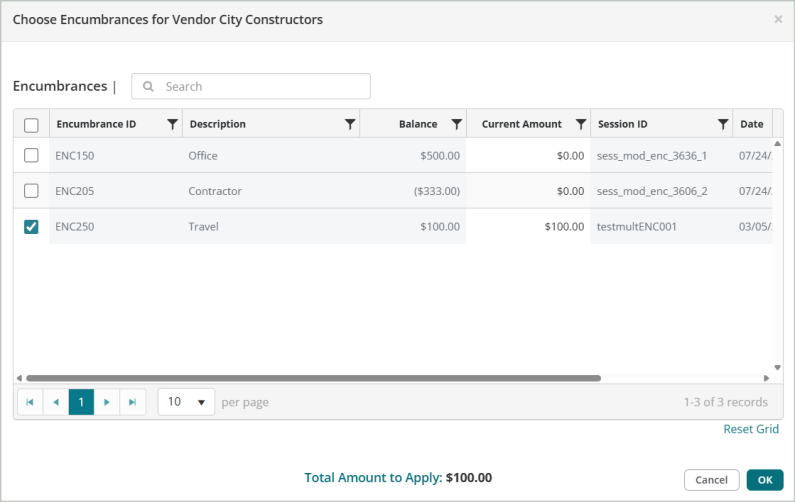
When you select a Vendor ID, the Choose Encumbrances form displays. Use this form to select the encumbrances to apply to the document.
After you make your selections, the system displays the related data in the Transactions grid.
Enter Transactions
In order to save or post an entry, every line item must include an encumbrance ID, all account codes (segments) for the organization, an increase or decrease amount, an effective date, and an original document description. These fields appear on all transaction entry forms.
-
MIP displays the segments that you entered in the original encumbrance entry. You cannot edit these segments.
-
MIP also displays the amount of your original encumbrance. An amount must be entered in either the Increase or Decrease column for each line, but not in both. For example, suppose your original encumbrance was entered as an Increase of $5,000. When this encumbrance is chosen for liquidation, the system displays the full $5,000 as a Decrease. You can either fully liquidate the encumbrance by leaving the amount as is, or you can partially liquidate it by entering a lesser amount.

Recall Memorized Document
Before you create or select a document, you can perform the following action:
 Recall Memorized Document
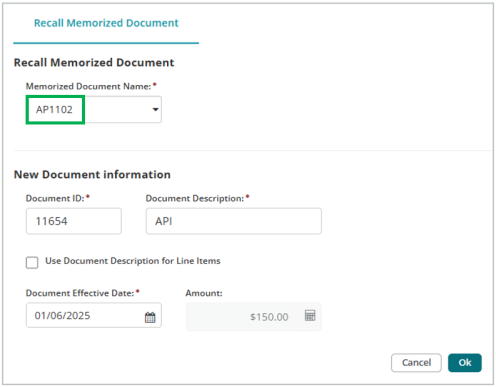
Use the Recall Memorized Document tab to recall a previously memorized document to include in the current session. You must Memorize a Document first before you can recall it in this session.

Steps:
Recall Memorized Document
-
Select the name of the document that you memorized in a previous session to recall in this session.
New Document Information
-
The Document ID, Document Description, Document Date, and Document Effective Date will auto-populate based on the memorized document you selected above. You can leave these as-is or enter new values. Note that the Document ID can't be the same as an existing ID in this session.
-
Amount: If the document you're recalling was memorized as Actual Amounts, the amount displayed can't be changed. If you memorized the original document using Percentages, enter the amount you want the system to apply. The system uses the percentages from the original document.
-
Use Document Description for Line Items: If you want the Document Description you entered above to display as the description in the transaction entry grid, select this option.
-
Select OK to complete the process. The recalled document is added to the session as an unposted document.
Memorize Document | Add Attachments
Once you've created or selected a document, you can perform the following actions:
Memorize Document
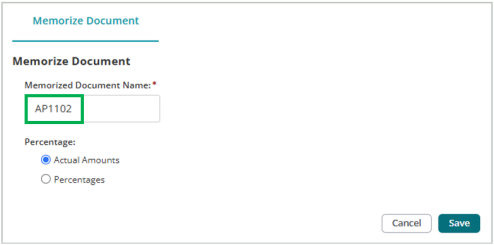
Use the Memorize Document tab to memorize an unposted document (under a new name) to use from session to session. When recalled, the system will reproduce the document you enter here just as you memorized it.
Steps:
-
Enter a name for the memorized document. The name you enter here will be used later, when you recall the memorized document in a different session.
-
Select either Actual Amounts or Percentages for your memorized document. If you select percentages, the system converts the amount for each line item to percentages (100% for Debit and 100% for Credit). Use percentages if the currency amounts for the document vary each time it's recalled.
-
Select Save to complete the process.
-
When you open a new session, select Recall Memorized Document. The memorized document that you just created will be available to select from the drop-down list.
Add Attachments
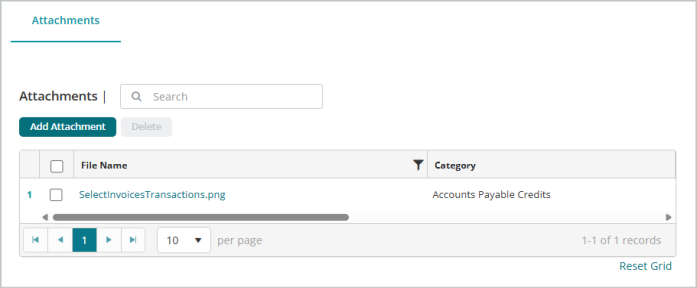
Use the Attachments tab to add supporting documentation to your session document.
Steps:
-
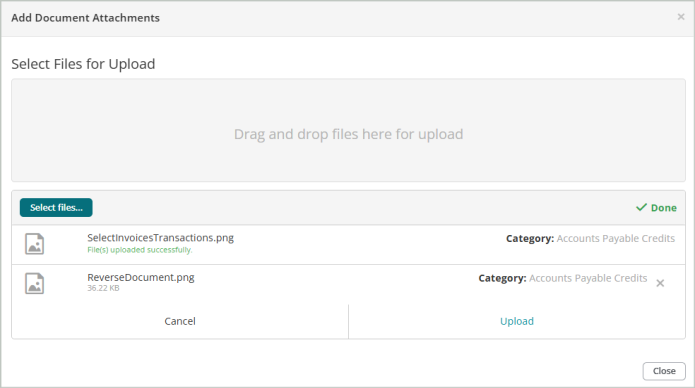
Select Add Attachment.
-
You can either drag and drop files to upload or Select files... from your file explorer.
-
Select Upload after you add the attachment.
-
You'll receive a message that the File(s) upload successfully.
-
Close the window. The document you attached will display in your list of attachments.
Save & Post
Save the document when you’re finished entering document details and transactions. You have three save options:
-
Save - Saves the current document and keeps it open for further editing.
-
Save & New - Saves the current document and opens a new blank document.
-
Save & Close - Saves the current document and returns you to the sessions page.
Delete - Deletes the current document (does not delete the entire session).
You can Post the session through the Unposted Sessions grid on the sessions page.