Designation Codes
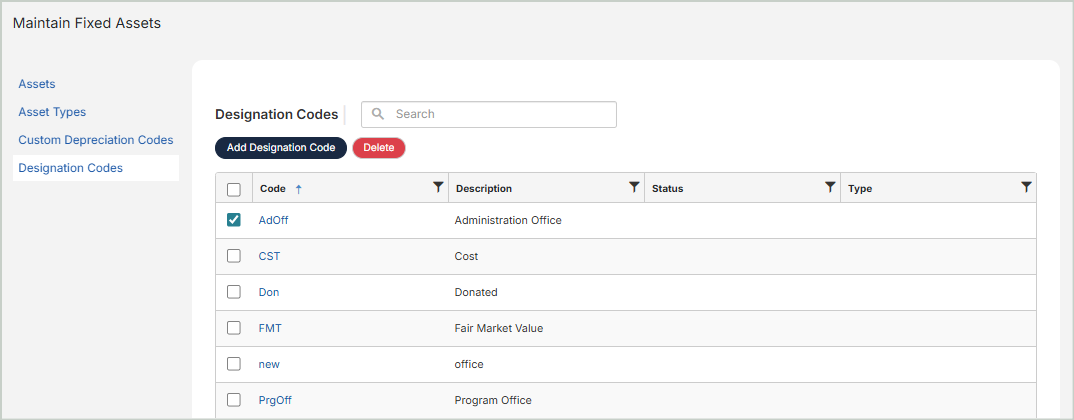
Designation codes are used to track non-financial information on your assets. Designation codes do not impact your general ledger or any other account - they're only used for reporting purposes. While not required, we recommend using designation codes to assist you in reporting and tracking your assets.
Types of Designation Codes
There are four types of Designation Codes:
Acquisition Code: Use an Acquisition-type code to track a group of assets acquired at the same time. For example, you can create a code for all assets purchased during a fiscal year. You might also create codes for assets that were purchased, donated, or exchanged.
-
Ex: An acquisition-type designation code named “DON”, used for assets that were donated to your organization.
Responsibility Code: Use a Responsibility-type code to track the group or person responsible for the asset.
-
Ex: A responsibility-type designation code named “ProgSvcs” to indicate the asset is the responsibility of your Program Services department, or a code named “Public” to indicate the asset belongs to the Public Relations department.
Valuation Code: Use a Valuation-type code to represent the method used to determine the value of the asset, such as cost, donation, and fair market value. Valuation codes follow GAP guidance.
-
Ex: A valuation-type designation code named "FMT" for Fair Market Value, or "CST" for At Cost.
Location Code: Use a Location-type code to track the location of an asset.
-
Ex: Two location-type designation codes named “BOS” and “NYC” to group all assets at your Boston office separately from assets at your New York office.
Add / Edit Designation Codes
To add a new designation code, select Add Designation Code.
To edit an existing designation code, select it from the grid.
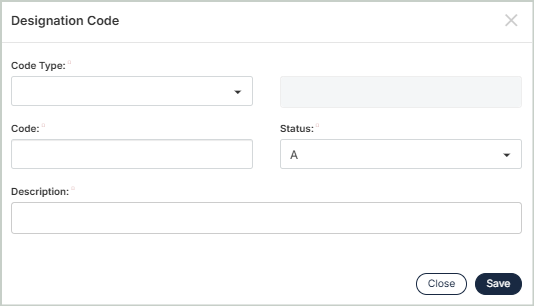
Code Type: Choose from four types of designation codes: Acquisition, Responsibility, Valuation, or Location.
Code: Enter a unique ID for this designation code. In the examples above, these would be “DON”, “ProgSvcs”, “BOS”, and “NYC”.
Status: Select a status for this designation code from Active, Inactive, or Discontinued.
-
Set a designation code to Active when you want to use it throughout the system. Active codes appear on reports.
-
Set a designation code to Inactive when you don’t want to use it regularly, but may still need to use it at some point. A warning message will appear when you attempt to use an inactive code.
-
Set a designation code to Discontinued when you no longer use it. You won’t be able to select a discontinued designation code when adding a new asset to the system – however, the code will still appear on reports.
Description: Enter a description for the designation code.
Once you're finished with your edits, Save your changes.
Delete Designation Codes
Before deleting a record, ensure you’ve selected the correct record you want to remove from the system. Deletion is permanent and cannot be undone.
