Manage Existing Allocation Codes
View & update details for an allocation code.
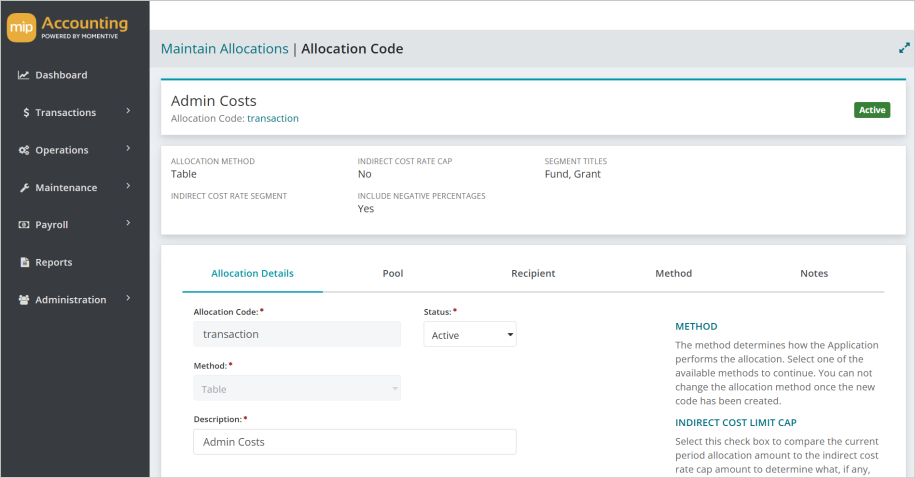
Select a tab below to learn more about the details in each section.
- Allocation Details
- Pool
- Recipient
- Method
- Notes
| Allocation Code | Enter the allocation code's name. | ||||||||||||||||||||||||
| Status |
Specify the status of the allocation code (Active, Inactive, or Discontinued).
|
||||||||||||||||||||||||
| Method |
The allocation method chosen for the code. See Allocation Methods for more information.  If you're using the Indirect Cost Rate method, see here for a list of rules of how the ICR is applied If you're using the Indirect Cost Rate method, see here for a list of rules of how the ICR is applied
The indirect cost rate cap is applied according to the following rules: Rule 1:If the indirect cost limit is calculated to be zero or positive (Debit cap), then the Proposed Allocation is only adjusted if it would cause the recipient accounts to exceed the indirect cost limit in a positive (debit) direction. For example:
Using this example, 200.00 remains in the pool.
Rule 2:If the indirect cost limit is calculated to be less than zero (Credit cap), then the Proposed Allocation is only adjusted if it would cause the recipient accounts to exceed the indirect cost limit in a negative (credit) direction. For example:
Using this example, (200.00) remains in the pool.
Rule 3:If the Proposed Allocation plus the Posted Amounts do not exceed the indirect cost limit (in accordance with Rules 1 and 2), then no adjustment is needed and the Proposed Allocation amount is applied in full. For example:
Using this example, the entire Proposed Allocation amount is applied.
Rule 4:If the Posted Amounts reach or exceed the indirect cost limit before consideration of the Proposed Allocation, then the allocation amounts for the affected recipient lines are set to zero, and an information code of "XCAP" is applied to those lines. The system continues to allocate for all lines where the indirect cost limit is not reached, or exceeded by the Posted Amounts. For example:
Using this example, no allocations are made. The entire 500.00 amount remains in the pool. |
||||||||||||||||||||||||
| Description | Enter a description for the allocation code |
Use indirect cost limit cap
Select this checkbox to compare the current period allocation amount to the indirect cost rate cap amount to determine what, if any, transaction entry will be made. The cap will only apply to the codes that are selected in the Indirect Cost Limit Calculation GL Accounts section of the allocation profile page (see the "Method" tab above).
Include codes with negative percentages when calculating allocations
Select this checkbox to include codes with negative percentages in the calculations. This option only applies to the Relative Account Balances, Weighted Average Daily Balances, Labor Hours, and UDF Unit Measures calculation methods (see Allocation Methods).
Note: This checkbox functions differently in the web-based version of MIP (Modern), as opposed to the desktop-version (Classic) which asks if you'd like to exclude codes with negative percentages.
Allocation Segments
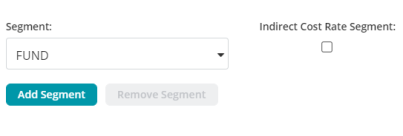
Segment
The system displays all segments, except GL.
Select up to three segments to allocate from (Pool). These three segments will dictate the segments available to allocate to (Recipient).
Note: If the "Fund" segment or a balancing segment is selected, you must also select the "Interfund Balancing Accounts" for the Pool and Recipient transaction entries (see the following section).
Indirect Cost Rate Segment
You can only designate one segment as the indirect cost rate segment.
You must designate a segment as the indirect cost rate segment if you are using the indirect cost rate allocation method (see Allocation Methods) or if you selected the Use indirect cost limit cap check box.
Interfund Balancing Accounts
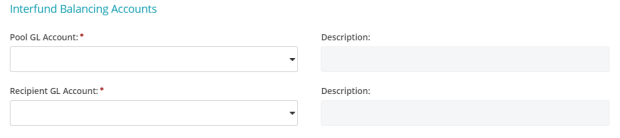
If a Fund, consolidated organization, or other balancing segment type was chosen above, you must select the General Ledger accounts needed for balancing the allocation entry.
Note: Using Interfund Balancing Accounts with non-balancing segments is optional; however, when either a Pool GL Account or Recipient GL Account is entered, both the Pool and Recipient are required.
Pool GL Account
Select a "Due From" account from the drop-down list. This is the account needed to create the transaction's interfund offset for the pool entry.
This field only displays CSH-type codes whose currency matches the organization's functional currency. The same GL account can be used for both the Pool GL Account and Recipient GL Account.
Recipient GL Account
Select a "Due To" account from the drop-down list. This is the account needed to create the transaction's interfund offset for the recipient entry.
This field only displays CSH-type codes whose currency matches the organization's functional currency.
This tab displays the assigned allocation segment codes, the percentage of the pool to allocate (with the exception of the Indirect Cost Method), and GL accounts to allocate from.
Codes to Allocate From
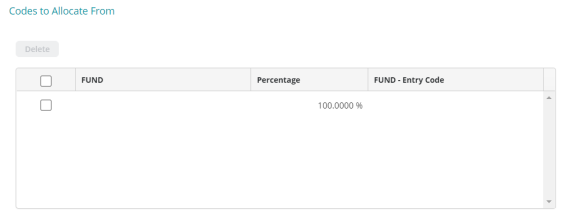
This grid displays the assigned pool codes and general ledger codes to allocate. The selected codes for the pool code and GL account to allocate from will determine the amount that is allocated to the recipient codes (with the exception of the indirect cost method). Selection of substitute entry code(s) and percentages is optional.
| (Segment Name) |
The pool codes to allocate the indirect costs from
|
| Percentage |
The percentage to allocate from the pool for the selected code. Only that percentage of the pool amount will be available for allocation.
|
| (Segment Name) - Entry Code |
The substitute code to keep the indirect cost pool intact
|
GL Accounts to Allocate From
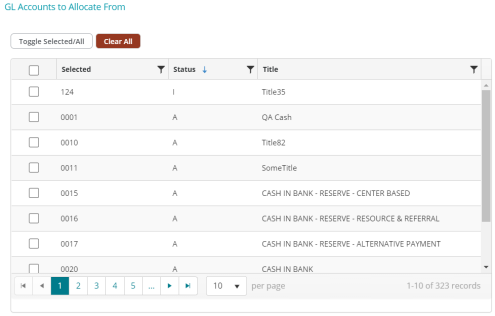
This grid displays the general ledger account that determines the amount to be allocated to the recipient codes. Only active or inactive general ledger codes will be available. The available GL codes will not include AP or AR (sub-ledger) account types.
Note: The system displays codes that were assigned to the Allocation Segment selected on the "Allocation Details" tab. Only CSH-type codes whose currency matches the organization's functional currency are available.
| Selected |
The General Ledger account to allocate from
|
| Status | The account's status (A - Active, I - Inactive, or D - Discontinued) |
| Title | The title of the code |
GL Account Entry Code (Optional)

This is the substitute GL account entry code selected when the allocation code was added.
The GL account entry code is used when you want to keep the general ledger account code's balances intact and reallocate to one account instead of numerous accounts.
Note: This field only displays CSH-type codes whose currency matches the organization's functional currency. All selected GL account codes for "GL Accounts to Allocate From" are replaced by this code during transaction entry.
Filter
The system displays all segments except GL and the Allocation Segment selected on the "Allocation Details" tab.
This tab displays the selected allocation segment codes to allocate to. The system also displays any GL accounts that were identified on the "Pool" tab.
See here if you're using the indirect cost rate method of allocation
This tab designates the indirect cost rate and begin date. The indirect cost rate segment Code, IC Rate, and the ICR Begin Date are displayed, and information can be entered if indirect cost rate capping applies. Since the allocation occurs between segments other than GL, GL accounts selected on the "Pool" tab are fixed in the allocation and displayed here for reference.
See here if you have the Grant Administration module installed
If the Grant Administration module is installed, and the Grant Administration segment (assigned by the Administrator using Organization>Set Up Modules>Grant Administration) is selected on the "Allocation Details" tab (including the "Use indirect cost limit cap" and "ICR Segment" check boxes), the system automatically displays the IC Rate and ICR Begin Date. You can change these dates if needed.
Note: The Grant Administration module is not yet available in MIP Modern.
Codes to Allocate To
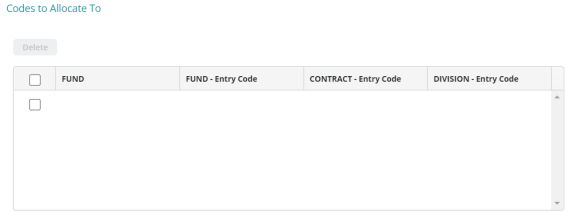
This grid displays the pool codes and general ledger codes to allocate. The selected codes for the pool code and GL accounts to allocate from determine the amount that is allocated to the recipient codes (with the exception of the indirect cost method).
See here if you're using the indirect cost rate method of allocation
The indirect cost rate segment Code, IC Rate, and the ICR Begin Date are displayed, and information can be entered if indirect cost rate capping applies. Since the allocation occurs between segments other than GL, GL accounts selected on the "Pool" tab are fixed in the allocation and displayed here for reference.
See here if you have the Grant Administration module installed
If the Grant Administration module is installed, and the Grant Administration segment (assigned by the Administrator using Organization>Set Up Modules>Grant Administration) is selected on the "Allocation Details" tab (including the "Use indirect cost limit cap" and "ICR Segment" check boxes), the system automatically displays the IC Rate and ICR Begin Date. You can change these dates if needed.
Note: The Grant Administration module is not yet available in MIP Modern.
| (Segment Name) |
The recipient code to allocate the indirect costs to |
| (Segment Name) - Entry Code |
The substitute code. This code replaces the selected code for transaction entry.
|
GL Account Entry Code

This is the GL account used to substitute for the receiving General Ledger accounts. This code keeps the indirect cost pool intact and reallocates to one account instead of numerous accounts.
This code is required if you are using an indirect cost rate method, or if you selected the "Use indirect cost limit cap" checkbox on the Allocation Details tab.
Note: This field only displays CSH-type codes whose currency matches the organization's functional currency. All selected GL account codes for "GL Accounts to Allocate From" are replaced by this code during transaction entry.
This tab displays different information depending on the allocation method selected for the code. Click one of the drop-down links below to see information pertaining to a particular method.
See Allocation Methods for details on each allocation method.
Keep in mind the following points when working with the "Method" tab:
When the Indirect Cost Rate method is selected, the “Use indirect cost limit cap” option uses the same GL Accounts that are selected for the Indirect Cost Rate method.
When the "Relative Account Balances" or "Weighted Average Daily Balance" methods are selected, the “Use indirect cost limit cap” option (a checkbox selected on the "Allocation Details" tab when adding a new allocation code) uses the same GL Accounts that are used to calculate the Relative Account Balances percentages or Weighted Average Daily Balances percentages.
All General Ledger Account fields only displays CSH type codes whose currency matches the organization's functional currency.
Table Method
If the Table method was selected for this allocation code, the system will display the Table version of this tab.
Codes to Allocate To
The system only displays codes that were assigned to the allocation segment in the "Allocation Details" tab. Your choices for allocation are units, monetary amounts, and percentages.
A row can have zero amount for percentage or units and amounts across the row. This allows you to designate the codes that apply to the specific allocation without creating a new allocation code with less Recipient allocation segment codes.
A row can have a combination of Percentage and Amounts, Units and Amounts, Percentage only, Units only, or Amounts only.
| (Segment Name) | The system displays the codes selected in the "Codes to Allocate To" group box on the "Recipient tab". The same row can have both percentage and amounts, or units and amounts. |
| Percentage | The percentage to allocate to the current line item. At least one line item must contain a percentage. Percentages must add up to 100%. |
| Units | The unit value for the current line item. The system automatically calculates the result percentages. |
|
Amounts |
The fixed monetary amount to distribute to the current line item |
While Process Allocations , the system allocates the monetary amounts in the order in which they are entered on the table. Any remaining amount is distributed according to percentages.
A row can have zero values for percentage, units, and amounts across the row. This allows you to designate the codes that apply to the specific allocation without creating a new allocation code with fewer Recipient allocation segment codes.
Indirect Cost Limit Calculation GL Accounts
These are the GL account codes assigned for the "Use indirect cost limit cap" calculation.
Note: This calculation is only required and used when the "Use indirect cost limit cap" check box is selected on the "Allocation Details" tab.
Method Justification
Use this text box to explain the allocation method chosen for this code. This step is optional.
Indirect Cost Rate Method
If the Indirect Cost Rate (ICR) method was selected for this allocation code, the system will display the Indirect Cost Rate version of this tab.
The ICR method allocates indirect costs by multiplying the indirect cost basis (amount derived from recipient allocation segment codes and IC amount calculation GL accounts) by the indirect cost rate.
Non-allocation segment codes are based on the Pool segment codes. The offset entry is made against the Pool segment codes regardless of the amount of the Pool balance.
The basic ICR methodology is:
Unallocated indirect costs are posted to an unallocated indirect cost GL account code and a pool allocation segment code during the course of operations.
The recipient allocation segment codes are used the calculate the indirect cost amount by applying a specific rate to the direct cost posted to the recipient accounts.
The results of the allocation calculation are posted to the recipient allocation segment codes and the allocated indirect cost GL account code.
Click here to see a list of the rules applied to Indirect Cost Rate Cap calculations
The indirect cost rate cap is applied according to the following rules:
Rule 1:
If the indirect cost limit is calculated to be zero or positive (Debit cap), then the Proposed Allocation is only adjusted if it would cause the recipient accounts to exceed the indirect cost limit in a positive (debit) direction. For example:
| Proposed Allocation | Posted Amounts | Indirect cost limit |
| 500.00 | 1000.00 | 1300.00 |
Using this example, 200.00 remains in the pool.
Rule 2:
If the indirect cost limit is calculated to be less than zero (Credit cap), then the Proposed Allocation is only adjusted if it would cause the recipient accounts to exceed the indirect cost limit in a negative (credit) direction. For example:
| Proposed Allocation | Posted Amounts | Indirect cost limit |
| (500.00) | (1000.00) | (1300.00) |
Using this example, (200.00) remains in the pool.
Rule 3:
If the Proposed Allocation plus the Posted Amounts do not exceed the indirect cost limit (in accordance with Rules 1 and 2), then no adjustment is needed and the Proposed Allocation amount is applied in full. For example:
| Proposed Allocation | Posted Amounts | Indirect cost limit |
| 500.00 | 1000.00 | 1600.00 |
Using this example, the entire Proposed Allocation amount is applied.
Rule 4:
If the Posted Amounts reach or exceed the indirect cost limit before consideration of the Proposed Allocation, then the allocation amounts for the affected recipient lines are set to zero, and an information code of "XCAP" is applied to those lines.
The system continues to allocate for all lines where the indirect cost limit is not reached, or exceeded by the Posted Amounts. For example:
| Proposed Allocation | Posted Amounts | Indirect cost limit |
| 500.00 | 1000.00 | 900.00 |
Using this example, no allocations are made. The entire 500.00 amount remains in the pool.
Indirect Cost Basis allocations are distinguished from other allocation methods in that the Recipient information dictates the final direction (debits or credits) of the allocation entry instead of the Pool information.
Note: If you selected the "Use indirect cost limit cap" check box on the "Allocation Details" tab, the system uses the same IC Amount Calculation GL Accounts for both the cap and regular calculation. The ICR Begin Date specified on the "Recipient" tab is the key to distinguishing the regular calculation from the cap calculation.
IC Amount Calculation GL Accounts
These are the direct cost GL account codes that the Indirect Cost Rate is applied to. More than one GL Account code can be selected.
These are the GL accounts in relation to the Balances From and Balances To amounts times the indirect cost rate.
Method Justification
Use this text box to explain the allocation method chosen for this code. This step is optional.
Relative Account Balances Method
If the Relative Account Balances (RAB) method was selected for this allocation code, the system will display the Relative Account Balances version of this tab.
The RAB method allocates the Pool Balances to the Recipient segments based on a percentage from the relative account balances found in the recipient segments, in combination with the GL Accounts specified on this tab.
The date range for the calculation is defined using the "Balances From" and "Balances To" dates entered when running the allocation calculation (see Process Allocations).
The allocation percentage target for each recipient allocation code combination is equal to the total monetary amounts for all GL accounts by each recipient allocation code combination, divided by the total amounts for all codes.

Note: If you selected the "Use indirect cost limit cap" check box on the "Allocation Details" tab, the system uses the same Relative Account Balance GL Accounts for both the cap and Relative Account Balance calculation. The Relative Account Balance GL Accounts are used in combination with the Codes to Allocate To segments and the Indirect Cost Rate information (segment, IC Rate, ICR Begin Date, and GL Account Entry Code) entered on the "Recipient" tab to calculate the indirect cost limit cap.
Relative Account Balances GL Accounts
The GL accounts to use as the basis to calculate the relative account balances.
Filter
Use this field to narrow down the GL accounts to select from.
Method Justification
Use this text box to explain the allocation method chosen for this code. This step is optional.
Weighted Average Daily Balance Method
If the Weighted Average Daily Balance (WADB) method was selected for this allocation code, the system will display the Weighted Average Daily Balance version of this tab.
The system allocates the Pool Balances to the Recipient segments based on a percentage from the relative account balances found in the Recipient segments, in combination with the GL Accounts specified on this tab. The relative balances are then weighted on a daily basis over a period of time.
The date range for the calculation is defined using the "Balances From" and "Balances To" dates entered when running the allocation calculation (see Process Allocations).
The allocation percentage target for each recipient allocation code combination is equal to the total weighted monetary amounts for all GL accounts by each recipient allocation code combination, divided by the total weighted amounts for all recipient allocation code combinations.

Note: If you selected the "Use indirect cost limit cap" check box on the "Allocation Details" tab, the system uses the same Weighted Average Daily Balance GL Accounts for both the cap and Weighted Average Daily Balance calculation. The Weighted Average Daily Balance GL Accounts are used in combination with the Codes to Allocate To segments and the Indirect Cost Rate information (segment, IC Rate, ICR Begin Date, and GL Account Entry Code) entered on the "Recipient" tab to calculate the indirect cost limit cap.
Weighted Average Daily Balance GL Accounts
The GL accounts to use as the basis to calculate the weighted average daily balances.
Filter
Use this field to narrow down the GL accounts to select from.
Method Justification
Use this text box to explain the allocation method chosen for this code. This step is optional.
Employee Headcount Method
If the Employee Headcount method is selected, the system displays the employee headcount version of this tab. You must have the Payroll module installed to use this method.
The system allocates the Pool Balances to the Recipient segments based on a percentage from the relative number of employees found in the recipient segments over a period of time. The date range for the calculation is defined using the "Balances From" and "Balances To" dates entered when running the allocation calculation (see Process Allocations).
Only employees associated with payrolls that have been transferred to accounting (using the Payroll module) are counted. Voiding checks does not remove an employee from the count.
The allocation percentage target for each recipient allocation code combination is equal to the total number of employees by each recipient allocation segment code combination, divided by the total number of employees for all recipient allocation segment code combinations.

Indirect Cost Limit Calculation GL Accounts
These are the GL accounts being used as the basis to calculate allocations.
Note: The Indirect Cost Limit Calculation GL Accounts only apply if the "Use indirect cost limit cap" check box was selected on the "Allocation Details" tab. This grid is used to select the GL accounts used in combination with the Codes to Allocate To segments and the Indirect Cost Rate information (segment, IC Rate, ICR Begin Date, and GL Account Entry Code) entered on the "Recipient" tab to calculate the indirect cost limit cap.
Filter
Use this field to narrow down the GL accounts to select from.
Method Justification
Use this text box to explain the allocation method chosen for this code. This step is optional.
Labor Hours Method
If the Labor Hours method is selected, the system displays the labor hours version of this tab.
Note: You must have the Payroll module installed to use this method.
The system allocates the Pool Balances to the Recipient segments based on a percentage from the relative number of labor hours found in the recipient segments during a date range. The date range for the calculation is defined using the "Balances From" and "Balances To" dates entered when running the allocation calculation (see Process Allocations).
Only employees associated with payrolls that have been transferred to accounting (using the Payroll module) are counted. Voiding checks does not remove an employee from the count. Only hourly employees are included in the labor hours calculation.
The allocation percentage target for each recipient allocation code combination is equal to the total number of labor hours by each recipient allocation segment code combination, divided by the total number of labor hours for all recipient allocation segment code combinations.

Indirect Cost Limit Calculation GL Accounts
Select the GL accounts to use as the basis to calculate.
Note: The Indirect Cost Limit Calculation GL Accounts only apply if the "Use indirect cost limit cap" check box was selected on the "Allocation Details" tab. This grid is used to select the GL accounts used in combination with the Codes to Allocate To segments and the Indirect Cost Rate information (segment, IC Rate, ICR Begin Date, and GL Account Entry Code) entered on the "Recipient" tab to calculate the indirect cost limit cap.
Filter
Use this field to narrow down the GL accounts to select from.
Method Justification
Use this text box to explain the allocation method chosen for this code. This step is optional.
Transaction Count Method
If the Transaction Count method is selected, the system displays the transaction count version of this tab. The transaction count is based on the General Ledger transaction entries and does not count any budget entries or entries in the encumbrance, accounts payable, or accounts receivable sub-ledgers.
The system allocates the Pool Balances to the Recipient segments based on a percentage from the relative number of transactions found in the recipient segments during a date range. The date range for the calculation is defined using the "Balances From" and "Balances To" dates entered when running the allocation calculation (see Process Allocations).
The allocation percentage target for each recipient code combination is equal to the total number of GL transactions by each recipient segment code combination, divided by the total number of GL transactions for all recipient segment code combinations.

Indirect Cost Limit Calculation GL Accounts
Select the GL accounts to use as the basis to calculate.
Note: The Indirect Cost Limit Calculation GL Accounts only apply if the "Use indirect cost limit cap" check box was selected on the "Allocation Details" tab. This grid is used to select the GL accounts used in combination with the Codes to Allocate To segments and the Indirect Cost Rate information (segment, IC Rate, ICR Begin Date, and GL Account Entry Code) entered on the "Recipient" tab to calculate the indirect cost limit cap.
Filter
Use this field to narrow down the GL accounts to select from.
Method Justification
Use this text box to explain the allocation method chosen for this code. This step is optional.
UDF Unit Measures Method
If the UDF Unit Measures method is selected, the system displays the user defined fields unit measures version of this tab.
The system allocates the Pool Balances to the Recipient segments based on a percentage from measuring the numeric values assigned to the user defined fields (selected on the "Allocation Details" tab). The values are considered relative to the recipient segments in combination with the UDF Unit Measures GL Accounts specified on this tab. The date range for the calculation is defined using the "Balances From" and "Balances To" dates entered when running the allocation calculation (see Process Allocations).
Only Transaction Line UDF fields with a Field Type of "Number" can be used with this allocation method. For more information on UDFs, see User Defined Fields.
The allocation percentage target for each recipient segment/GL code combination is equal to the UDF values totaled by each recipient segment/GL code combination, divided by the total of the UDF values for all recipient segment/GL code combinations.

Note: When using the indirect cost limit cap with this method, the system uses the same UDF Unit Measure GL Accounts for both the indirect cost limit cap and the UDF Unit Measure Method calculation. The UDF Unit Measure GL Accounts are used in combination with the Codes to Allocate To segments and the Indirect Cost Rate information (segment, IC Rate, ICR Begin Date, and GL Account Entry Code) entered on the "Recipient" tab to
UDF Unit Measures GL Accounts
Select the GL accounts to use as the basis to calculate. This includes numeric user defined field values (from the user defined field selected on the Allocation tab) that are needed for the percentage calculation.
The calculation uses the user defined field in relation to the "Balances From" and "Balances To" date range and calculates the percentages as they relate to the allocation segment codes on the Recipient tab.
Filter
Use this field to narrow down the GL accounts to select from.
Method Justification
Use this text box to explain the allocation method chosen for this code. This step is optional.
Enter any notes about the allocation code here.