Manage Payroll Sessions
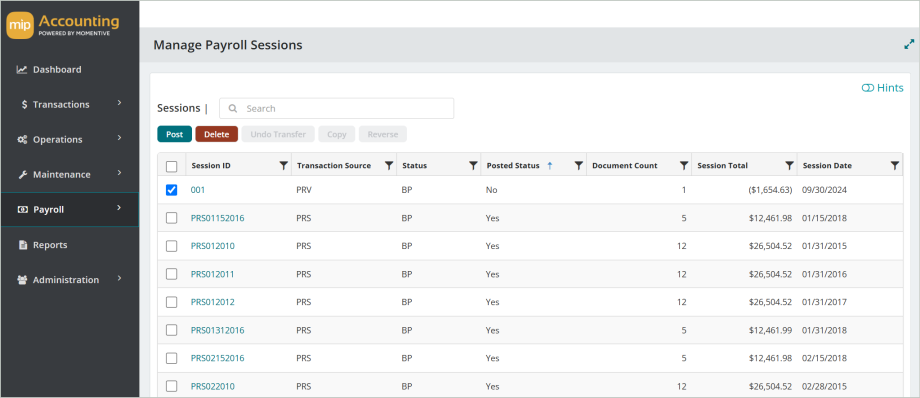
This page lists all of your payroll sessions, posted and unposted. This is where you can post your payroll sessions to the general ledger.
Available Actions
From here you can post a session, delete an unposted session, undo a session transfer to accounting to make any edits, copy a session, or reverse a posted session.
Post is available for unposted payroll sessions.
Delete is available for an unposted payroll session you'd like to remove.
Undo Transfer enables the "undoing" of a previously transferred payroll session (see Transfer to Accounting). Only payrolls that have been previously transferred can be undone.
Copy copies a selected posted payroll session, with all associated documents. The copied session will have a status of "Batch-to-Post" and will display "No" in the "Transferred Status" column.
Reverse reverses a selected posted payroll session, with all associated documents. The reversed session will have a status of "Batch-to-Post" and will display "No" in the "Transferred Status" column.
Payroll Sessions Grid
The Manage Payroll Sessions grid includes the following columns:
Session ID: The session ID as entered in the Transfer to Accounting form
Transaction Source: The transaction source of the session. These are exclusive to the Payroll module.
-
PRS is "Payroll System Generated Checks/Vouchers"
-
PRC is "Payroll Manual Checks"
-
PRV is "Payroll Void Checks/Vouchers"
Status: The status of the session
-
BP is "Batch-to-Post"
-
BS is "Batch-to-Suspend". You cannot post sessions with this status - the status must first be changed to "Batch-to-Post"
-
OL is "Online Posting", for users who chose the "Online" processing mode for their organization. Your organization uses Online Processing if all your transactions are posted as soon as they are saved during transaction entry. Most organizations do not use this mode.
Posted Status: Indicated by "Yes" or "No"
Document Count: The number of documents attached to the session. Each individual employee's payroll counts as one document.
Session Total: The total dollar amount of the session
Session Date: The date the session was entered
Transferred Status: Whether the session has been transferred to accounting, indicated by "Yes" or "No"
Description: The session description as entered in the Transfer to Accounting form
View a Session's Details
To see the details of a session, select the Session ID. If the session has not yet been posted, you can make changes to the date, description, and certain document details, such as adding or deleting entries.
Note: For Online Processing Mode users, you can make changes to the session until the first document in the session is posted. After that, you are not able to make changes. Your organization uses Online Processing if all your transactions are posted as soon as they are saved during transaction entry. Most organizations do not use this mode.
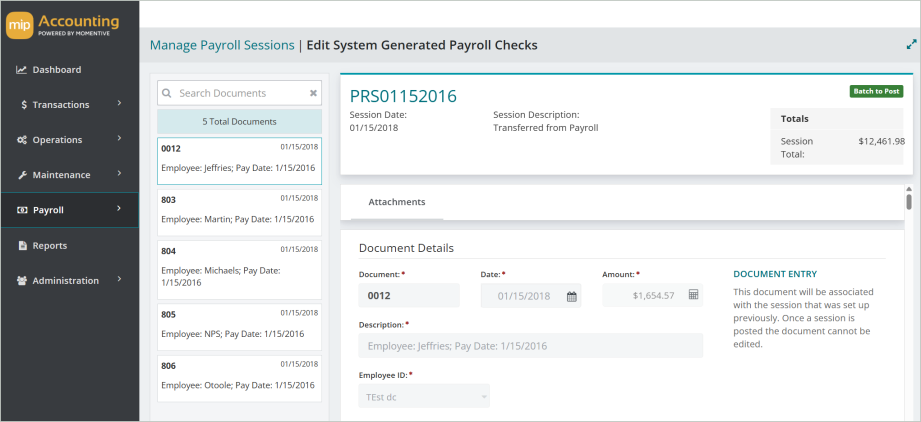
In the individual session view you can see each document attached to the session, as well as general session details such as the session date, total, and batch status.
This view displays each entry that will be made to your GL when you post the session. In the image above, the individual documents are the employee paychecks for that payroll session, and the entries that the system will make once this session is posted.
Note: If you want to void an individual payroll check that is part of a session, rather than deleting the entire session or every transaction entry in the document, use the Void Payroll Checks form.
FAQs
 I want to remove an individual document/check from a session. How do I do that and ensure I have proper documentation of it for audit purposes?
Let's use the example of a session ID PVC123, with five checks numbered from 001 to 005, attached as individual documents.
When you transfer session PVC213 to Accounting (see Transfer to Accounting), all five checks are transferred with the session. This session (PVC213) will appear in the "Manage Payroll Sessions" table.
If you later decide to void check 002, take the following steps:
1. Post session PVC213, essentially posting check 002.
2. Void the check (see Void Payroll Checks).
3. Then, transfer the voided check 002 to Accounting with a new session PVC300.
4. Post the new session.
This leaves a good audit trail and removes confusion about whether or not a check has been transferred, posted, and/or voided.