Purchase Orders & Receipts
Use this page to manage your purchase orders. The main list shows all purchase orders and reference numbers with their status, date, and vendor. Click any reference number to open and edit it. Use the Delete button to remove an In Process PO that has not yet been printed.
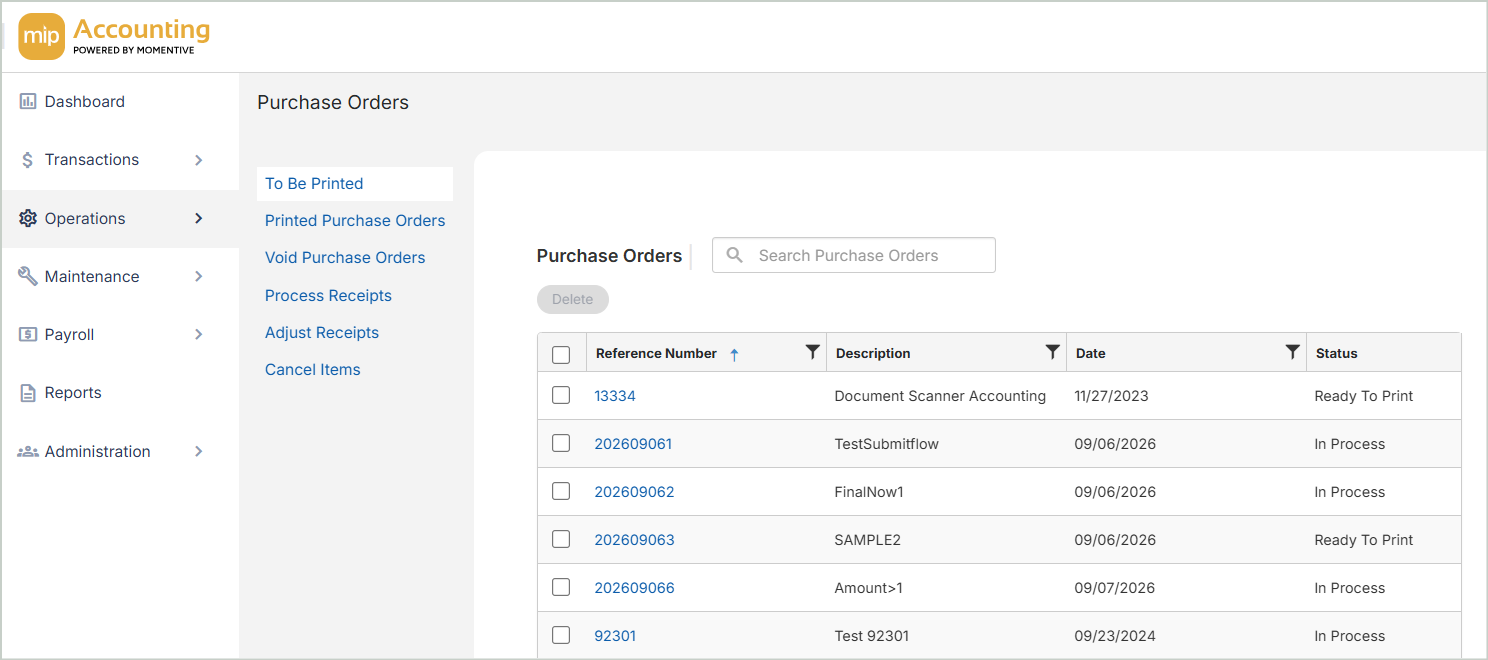
Create a Purchase Order
To begin a purchase order, go to Operations > Purchase Orders > Purchase Requests and select Create Purchase Order. While the PO is in progress, it carries a status of In Process, which allows you to save and modify it before sending to the vendor. When the order is ready, change the status to Ready to Print and print the purchase order. Once printed, the reference number converts to a purchase order number and the status changes to Open.
Choose your receiving workflow on each PO:
-
Skip Receiving - Line items become available for invoicing immediately after printing, without a receiving step. Ideal for blanket POs or service-based orders where quantity tracking isn't needed.
-
Receiving - Items must be received before they can be invoiced. Ideal for goods-based orders where quantity control and audit trail are important.
Void a Purchase Order
To void an entire purchase order, select it from the Void Purchase Orders form. Only printed purchase orders that have not been received or invoiced can be voided. Voiding is permanent — a voided purchase order cannot be reopened.
Process Receipts
When goods arrive, record a receipt against the open purchase order. Enter a receipt number, receipt date, and the name of the person receiving the items. Select the purchase order number to display its open line items, then enter the quantity received for each — or use Receive All to fill in the full outstanding quantity at once. Post when complete.
You can process receipts from multiple purchase orders for the same vendor in a single session.
Adjust Receipts
If a receipt was entered incorrectly, use Adjust Receipts to correct the quantity or unit price. Enter an adjustment number, adjustment date, the name of the person making the adjustment, and select the original receipt number. Enter the corrected quantity and unit price, then post.
Note: You can only adjust receipts that have not yet been invoiced. Once a line item on a receipt has been invoiced — even partially — it cannot be adjusted.
Cancel Items
To remove specific line items from an open purchase order without voiding the entire order, use Cancel Items. Enter a cancellation number, cancellation date, cancelled by, and select the purchase order. Enter the quantity or amount to cancel for each line item and post. Cancelled line items remain visible in the purchase order record. If encumbrances were created from the PO, the system automatically generates the corresponding encumbrance liquidation on post.