Auto Payment Bank Reconciliation
Auto Payment reconciliation can vary depending on how many sessions and documents were submitted on a given date.
In this topic:
Understanding the Amount on Your Bank Statement
The amount on your bank statement represents the total of all sessions and documents that were successfully submitted within Corpay’s daily processing window:
-
Payments submitted before 6PM CST on a business day are grouped together and debited one business day later.
-
Payments submitted after 6PM CST on a business day are grouped together and debited two business days later.
All payments submitted within the same processing window are combined into one total amount on your bank statement.
How to Find the Payments That Make Up the Corpay Amount
When reconciling, you'll see one total amount on your bank statement. Follow the steps below to isolate the individual payments that make up that amount.
Step 1 - Run a Posted GL Transaction Report
Run a report to view all posted APS runs within a specific date range. This report will show every Auto Payment submitted during that period and serves as a helpful cross-reference when performing your bank reconciliation.
You'll use the Session ID from this report to filter your payments in Bank Reconciliation.
1. Create a New Report
Navigate to Reports > Transactions > Posted General Ledger Transactions, then create a New Report.

2. Add Your Report Columns
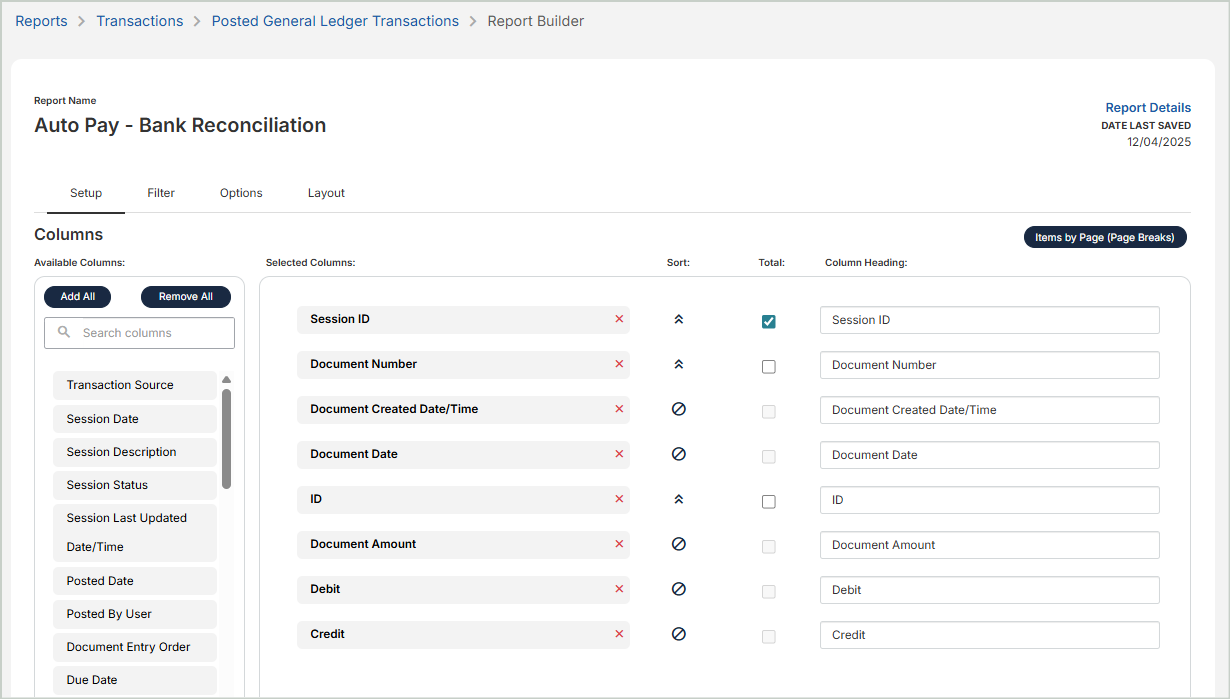
On the Setup tab, include the following columns. Select the Session ID Total checkbox so your report displays session totals.
 Columns to Include
-
Session ID
-
Document Number
-
Document Created Date/Time
-
Document Date
-
ID
-
Document Amount
-
Debit
-
Credit
3. Set Column Filters
On the Filters tab, apply the following filters to your report:
-
Document Created Date/Time → Between → Enter the date range of all APS submissions you want to view. In the example below, I'm viewing all Auto Payment submissions that occurred between 12/01/2025 and 12/15/2025.
-
GL Code = 11001
-
Transaction Source = APS
-
Payment Mode = Auto Payment

4. Summarize Amounts
On the Options tab, select Summarize Amounts. This displays a single summarized line for each session, making grouping easier to identify.

5. View Your Report
This report shows all Auto Payment submissions for the selected date range and serves as your reference point during bank reconciliation.
The amount on your bank statement represents the total of all sessions and documents that were successfully submitted within Corpay’s daily processing window:
-
Payments submitted before 6PM CST on a business day are grouped together and debited one business day later.
-
Payments submitted after 6PM CST on a business day are grouped together and debited two business days later.
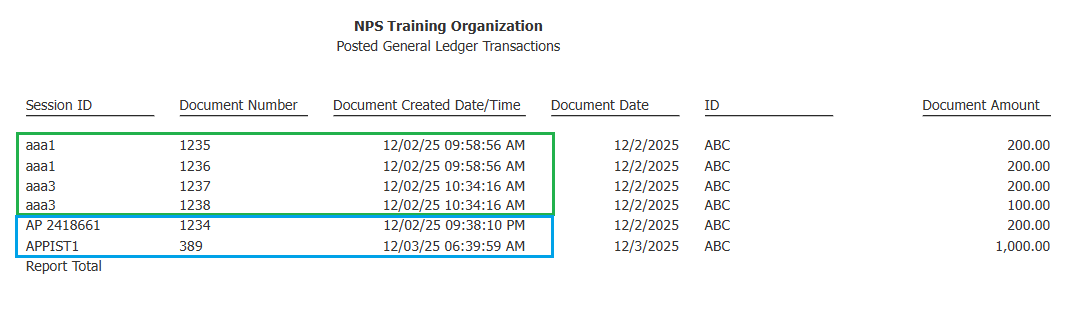
Use the Document Created Date/Time column to determine how the payments were grouped. You'll use the Session ID from this report to filter your payments in Bank Reconciliation.
In the example below:
-
Four payments were submitted on 12/02/25 before 6PM CST. These will be grouped together.
-
One payment was submitted on 12/02/25 after 6PM CST, and one payment was submitted on 12/03/25 before 6PM CST. These will be grouped together.
Step 2 - Apply Filters to Narrow Your Results
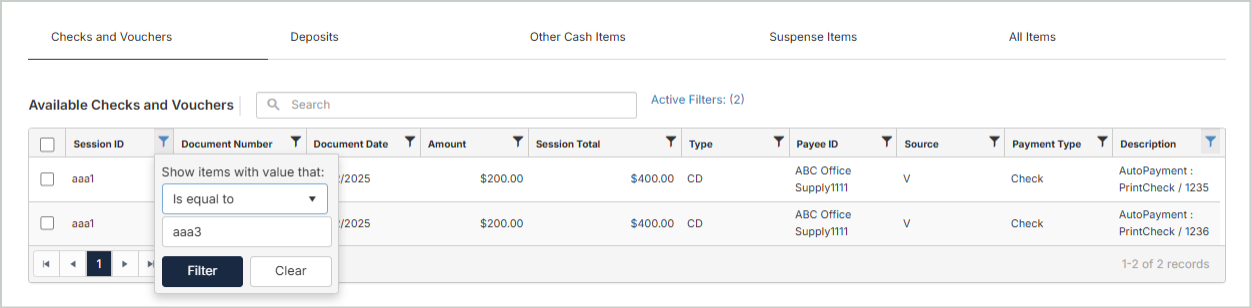
Return to Bank Reconciliation and set column filters to isolate the payments tied to the amount you're clearing.
-
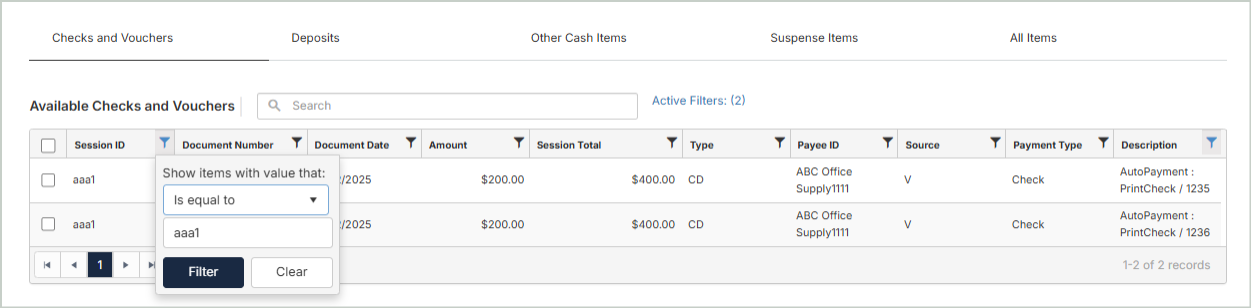
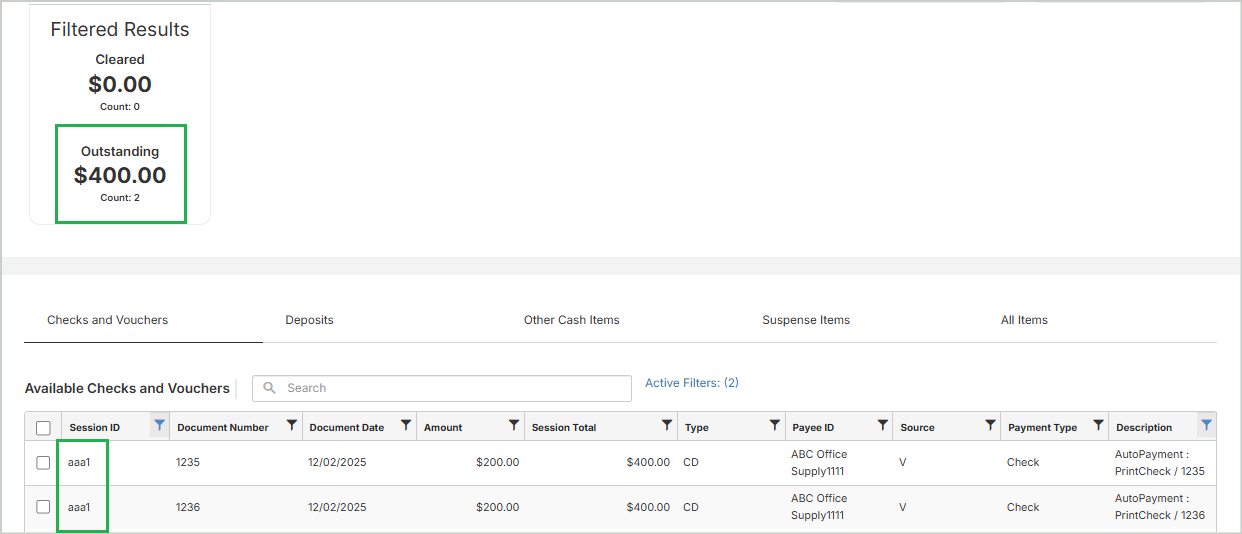
Session ID → Is equal to → aaa1
-
Shows all payments that fall under the same session.
-
Step 3 - Verify Your Filtered Results
The grid will now display only the payments under the selected Session ID.
-
The Outstanding amount in the Filtered Results card represents the total of all payments under this Session ID.
Step 4 - Clear the Payments
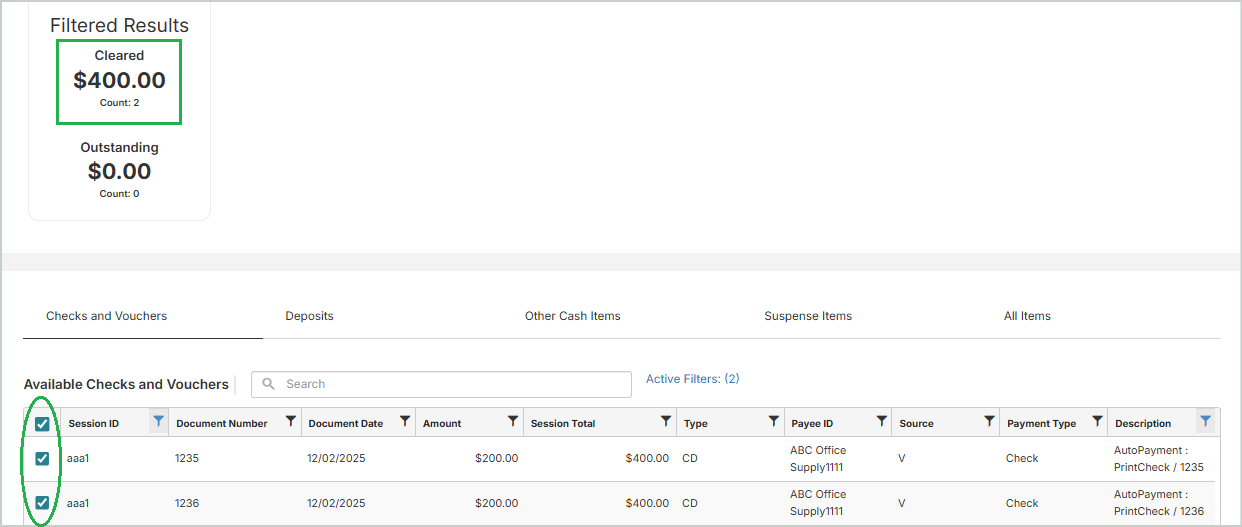
Select the checkbox at the top left of the grid to clear all payments under the current Session ID.
The following will update automatically:
-
Cleared amount in the Filtered Results card
-
Cleared amount in the Checks and Vouchers card
-
Reconciled Bank Balance and Unreconciled Difference totals
Step 5 - Repeat the Process
Repeat the same process for each Session ID identified in your report.
-
Session ID → Is equal to → Enter the next Session ID from your report.
Clear that group of payments, then repeat the process for each remaining session until all payments tied to the amount on your bank statement have been fully reconciled.