Drilldown Reports
The Drilldown feature is available in several MIP reports. Drilldown is a reporting functionality that lets you move seamlessly from high-level report balances to the specific transactions that make them up. With a simple click, you drill into the details behind report values - such as transaction history, document information, and supporting attachments.
Drilldown is available in the following reports:
Allocation Management
-
Pre-Allocation Normal Trial Balance
Financial Statements
-
Balance Sheet
-
Combining Statement of Revenues & Expenditures
-
Statement of Activities
-
Statement of Financial Position
-
Statement of Revenues and Expenditures
-
Statement of Revenues & Expenditures by Period
General Ledger Analysis
-
Normal Trial Balance
Accessing Drilldown Reports
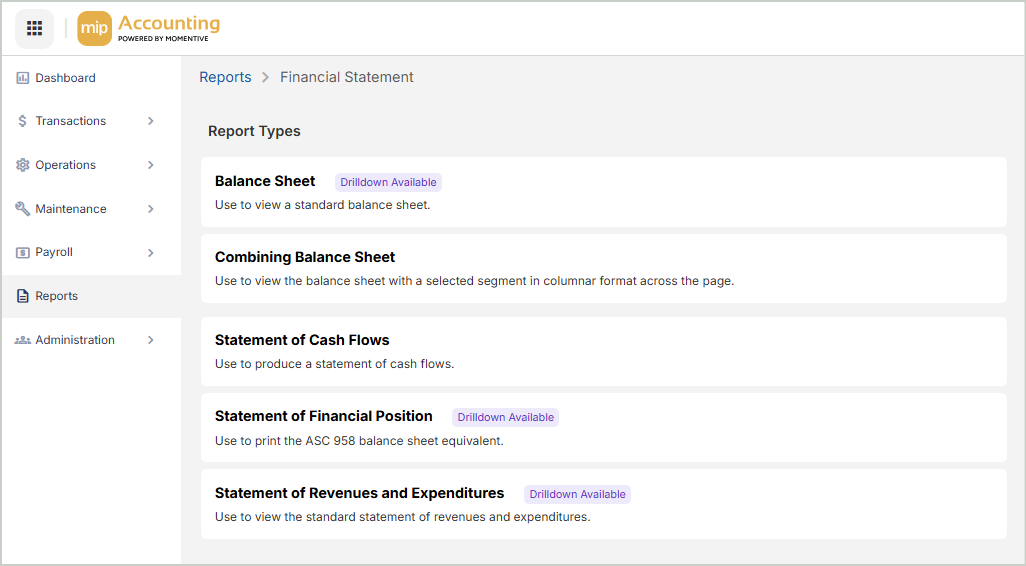
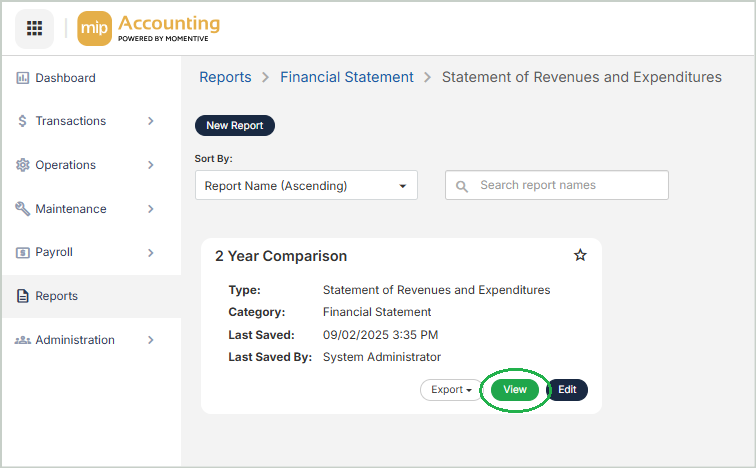
Drilldown report values are accessed directly from the Report View - launched from either the Report Builder or your list of saved reports.
Example: I'm running a 2-year budget comparison report by department.
Level 1 - Report Values
In the Report View, values highlighted in blue are available for selection to access drilldown data.
Example: When viewing my comparison report, I notice the Dues & Subscriptions expense has jumped significantly from 2020 to 2021. With a simple click on the 17,655.00 value, I can move past the summary number and into the actuals that make up the expense.

Level 2 - Document Data
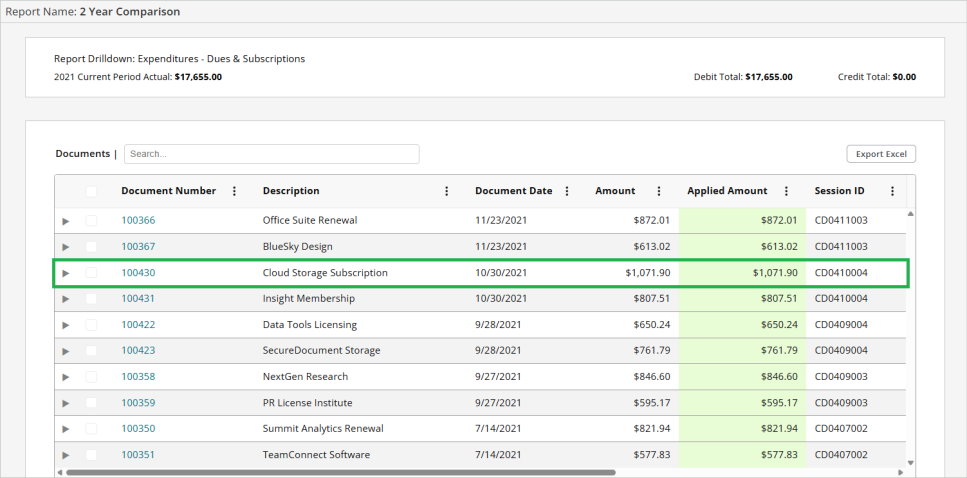
Once a report value is selected, a new browser tab will open that displays all the documents behind that total.
Example: Right away, I can see the documents tied to the Dues & Subscriptions expense. One stands out: a high subscription from October.
Document Details
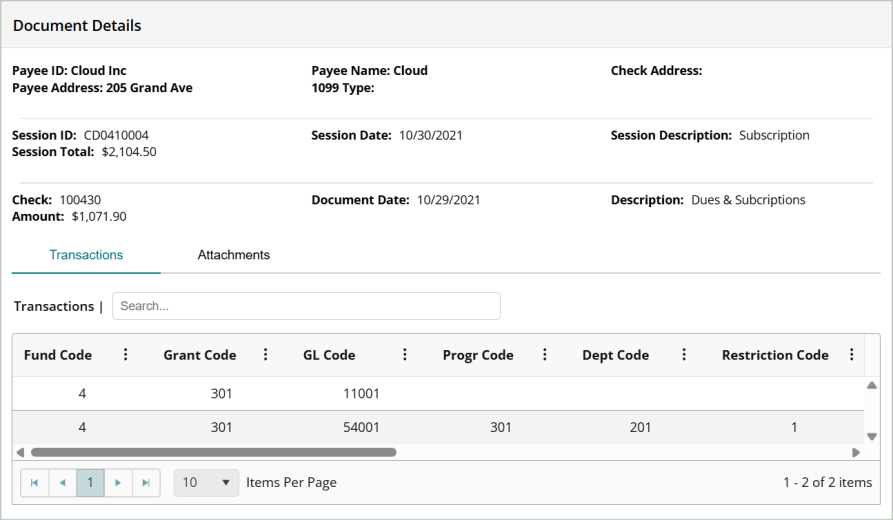
You can select a specific document from the grid to open the full Document Details view. From here, you can view more detailed information associated with the document.
Example: By selecting the 100430 subscription document from the grid, I can review the document information, check the transaction coding, and access any supporting attachments.
Level 3 - Transaction Data
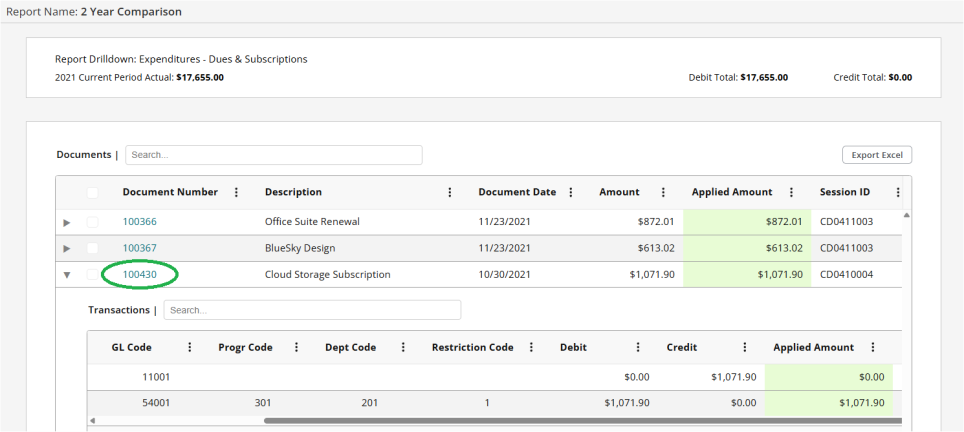
In the document grid, you can view the transaction details by expanding the drop-down next to a document.
Example: I can also expand the 100430 subscription document directly from the grid to see its related transaction details.
Exporting Drilldown Data
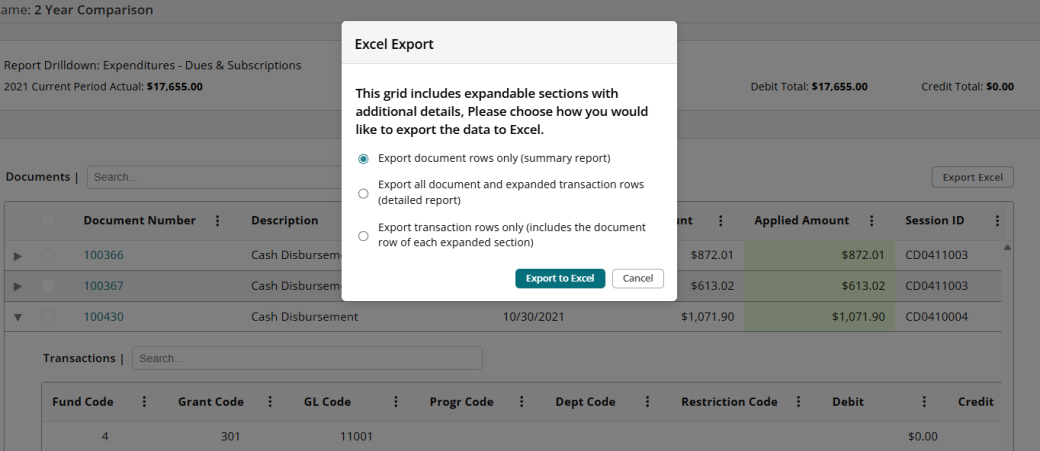
When exporting drilldown data, you can choose how much detail to include in Excel.
-
Export document rows only - A summary report showing just the top-level document rows.
-
Export all document and expanded transaction rows - A detailed report including both the document rows and all their related transactions.
-
Export transaction rows only - A transaction-level report that includes each transaction and its associated document row.
Account Level Security for Drilldown
You can apply Account Level Security to control what financial data your users can view when drilling into reports. This ensures that users only see the data they’re authorized to access.
How it works:
-
If a user is restricted from viewing certain account segments, and a report includes data tied to those segments, the report totals will reflect only the segments the user has access to.
-
The user can still drill down into report values, but they won’t see individual document or transaction rows tied to restricted segments.
-
If all transactions in a document are tied to restricted segments, the entire document row won't be visible to the user.
Step 1 - Apply ALS at the Organization Level
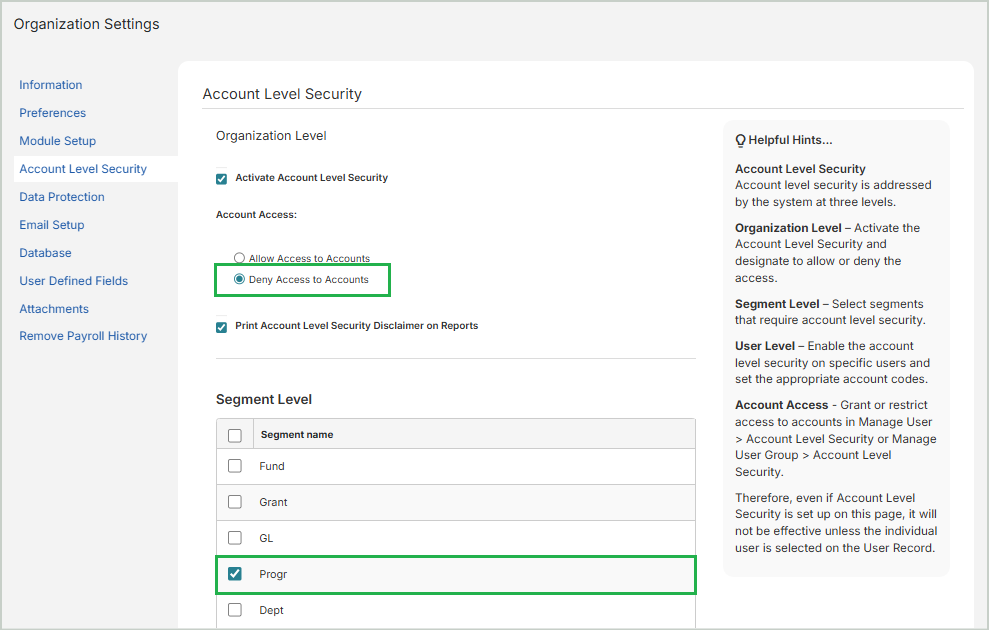
Account Level Security settings must first be applied at the organization level to define which segments your users should have access to.
-
Navigate to Administration > Organization Settings > Account Level Security.
-
Select which segments your users should be allowed or denied access to.
-
Save your changes.
Example: I've denied access to the Program segment at the organization level.
Step 2 - Apply ALS at the User Level
Once organization-wide Account Level Security is set, you can apply individual user restrictions to specific segments.
-
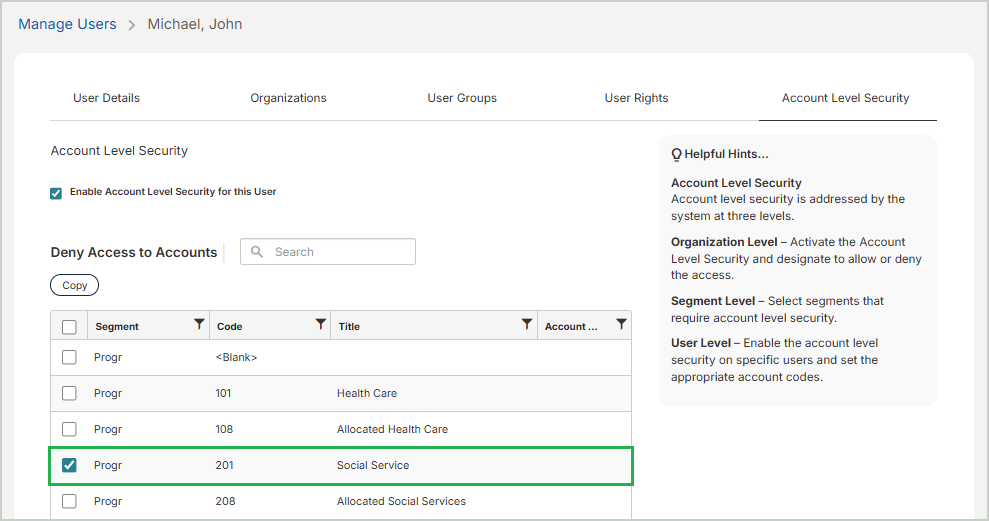
Navigate to Administration > Manage Users > Account Level Security.
-
Select a user and assign specific segment restrictions.
-
Save your changes.
Example: I've restricted this user from accessing Program Code 201.
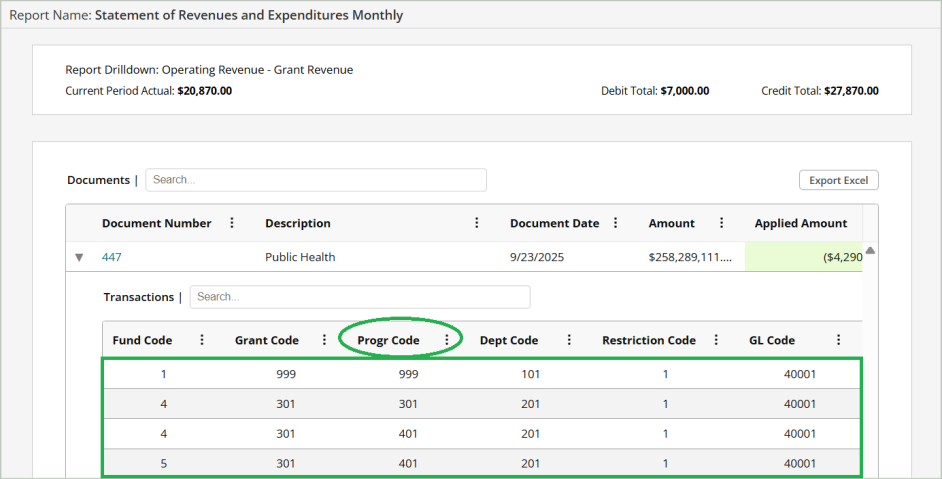
Here’s what a restricted user will see when viewing Drilldown report data:
Level 1 - Report Values
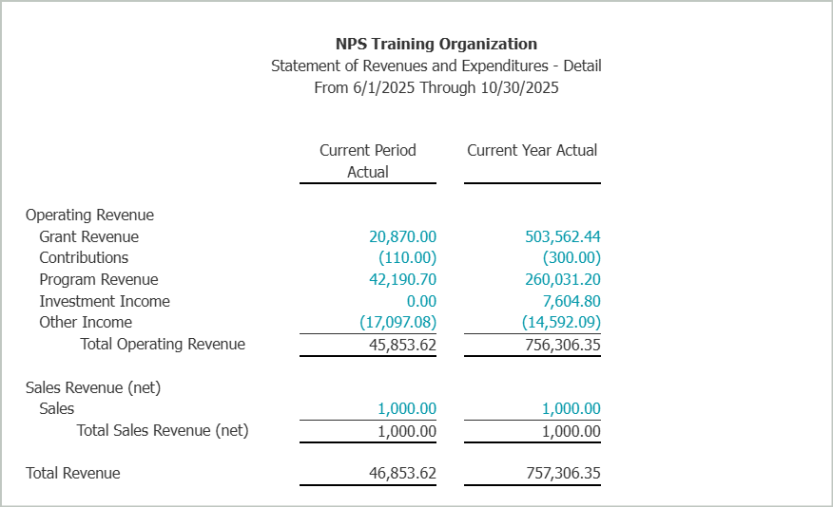
Report totals are automatically filtered to exclude restricted segment data.
Example: Since Program Code 201 is restricted, those transactions will be excluded from the totals and from any report values, even if the report format is defined to include them.
Level 2 - Document Data
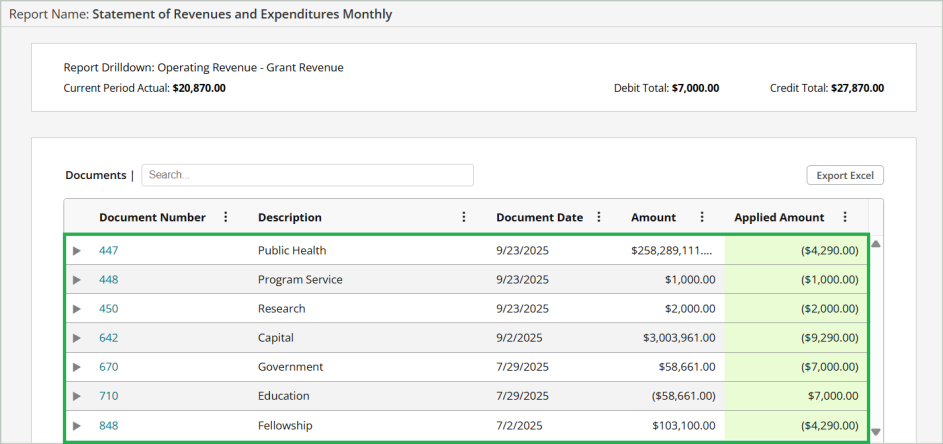
When viewing the list of documents under a report value, users will only see document rows if they contain transactions with segments they're permitted to access.
Example: If all transactions within a document contain restricted segments (e.g. Program Code 201), the entire document row will not be visible.
Level 3 - Transaction Data
When expanding a document to see transaction-level data, users will only see transaction rows containing segments they're permitted to access.
Example: Any transaction row linked to a restricted code (e.g. Program Code 201) will not be visible.