Add / Edit Email Templates
Create default and custom email templates for payroll vouchers sent from MIP Cloud. Note that the "Default" email template can't be deleted.
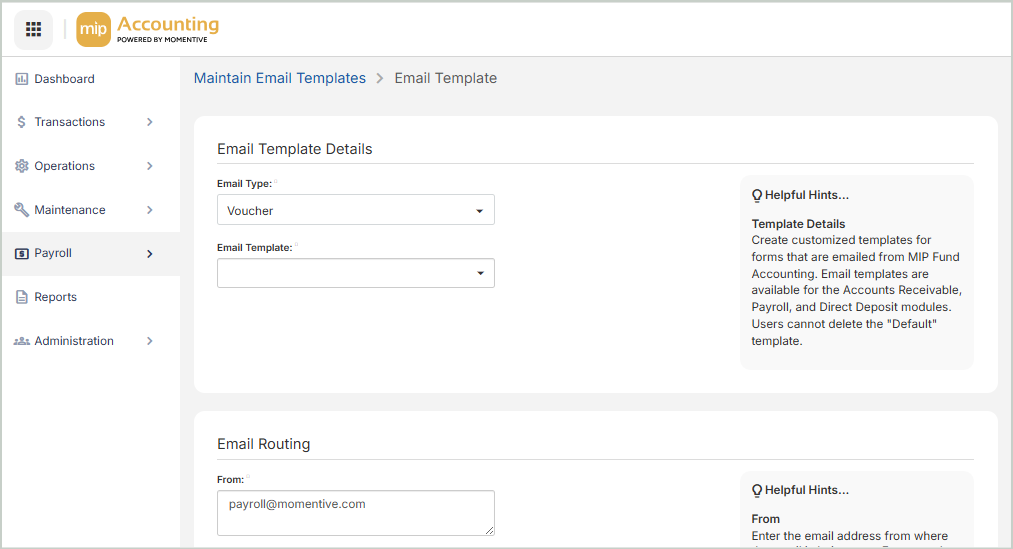
Email Template Details
Email Type: Select an email type, such as "Voucher". You'll then define the preferences for that email type.
Email Template: Enter a name for the template, or select <Default> if you want this to be your default template.
-
We recommend creating a <Default> template for each email type before creating additional email templates. The <Default> template should include internal email routing information and generic messaging content.
Note: You can customize email templates for each customer and email type, or create templates for specific purposes, such as Final Notice or Past Due Invoices. To use a custom template, you'll need to select it individually on each recipient’s Email tab (in their record) before processing vouchers.
Email Routing
From: Enter the email address from where the email is being sent. For example, you might want to enter your company’s email address if you have rights to monitor it.
-
Note: If the Use Custom Credentials checkbox was selected and a username was entered by the administrator during SMTP setup, the "From" email address entered here must match that username. You can't use a username with someone else's email address when this option is enabled.
Cc: Use this field to send a copy of the email to additional recipients. Email addresses entered here will be visible to all recipients.
-
If entering multiple email addresses, separate each with a semicolon and a space (for example: you@email.com; me@email.com).
Bcc: Use this field to send a blind copy of the email to additional recipients. Email addresses entered here will not be visible to recipients.
-
If entering multiple email addresses, separate each with a semicolon and a space (for example: you@email.com; me@email.com).
Note: We recommend that your organization includes its own email address as a Cc or Bcc recipient to maintain a historical record of emails sent from MIP Cloud. Do not delete these emails, as they serve as your only historical record.
Email Subject and Content
Subject Line: Enter the subject line for the selected email type. This text will appear in the subject line of all emails sent for this type.
Customize Email Content: Enter a message to be included in all emails for the selected email type. For example, you might include a contact person’s name and phone number that would be relevant for all customers receiving an emailed voucher.
The icons under "Customize Email Content" correspond to the following actions:

|
Bold, Italicize, or Underline text |

|
Justify text left, center, or right |

|
Insert a bullet point list |

|
Insert a hyperlink |
|
Adjust the text font size (defaults to "inherited size") |

|
Change the color of the text |

|
Change the color of the background |

|
Insert an image (from a URL only) |
|
Insert a merge field.
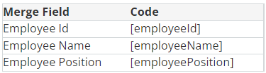
Available merge fields in the Payroll module:
|
Once you're finished with your edits, Save your changes.