Select Checks to Void
Select the checks you'd like to void.

Select Checks to Void
The Posted Checks & Vouchers grid displays all checks available to void.
Document: The document number
GL Code: The General Ledger code
Vendor ID: The vendor ID
Date: The check date
Amount: The check amount
EFT: "Yes" or "No" depending on if the voucher was paid electronically using EFT
Session ID: The session ID
Transaction Code Source: The transaction code source
Payee: The payee name
Select the checks to void, then select Next.
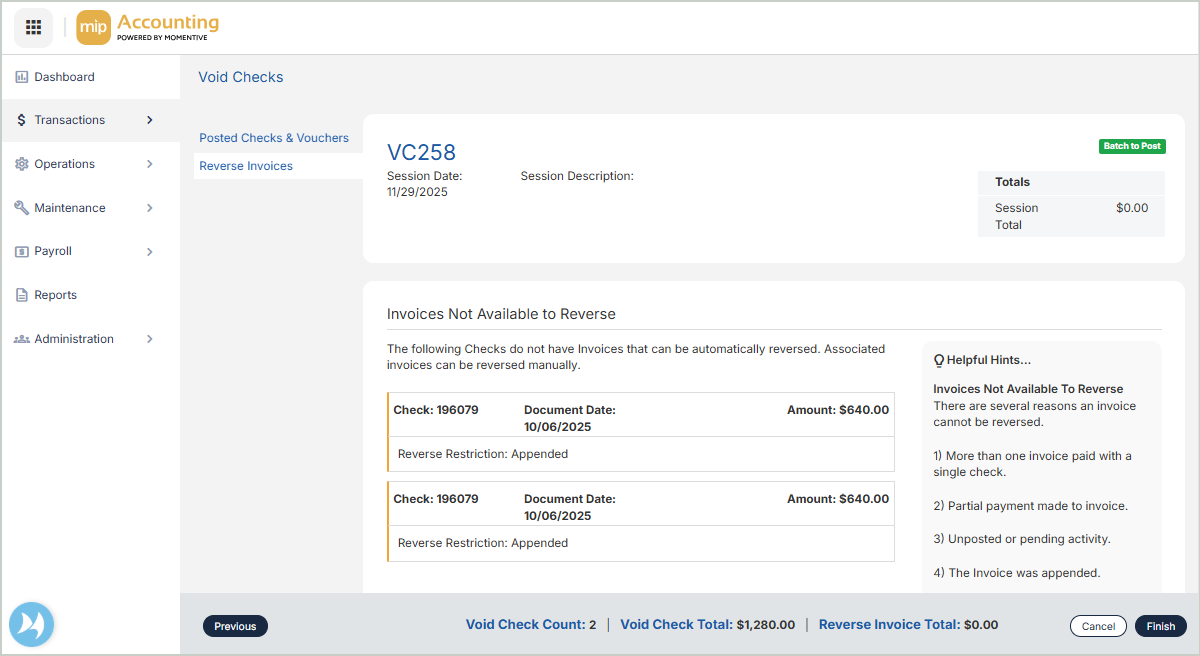
Reverse Invoices
The Reverse Invoices section displays all invoices that are not available to reverse.
Select Finish to complete the void checks process. You'll be directed back to the Void Checks sessions page where you can view and post your session.