Edit/Post Unposted Invoices
Manage your unposted invoices.
-
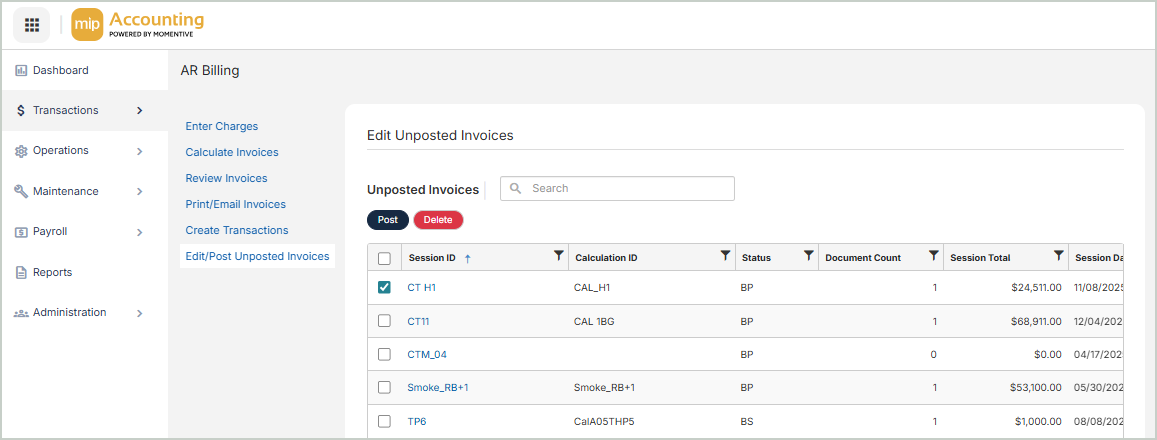
To post an invoice, select it from the grid, then select Post.
-
To edit or view an invoice, select the session ID from the grid.
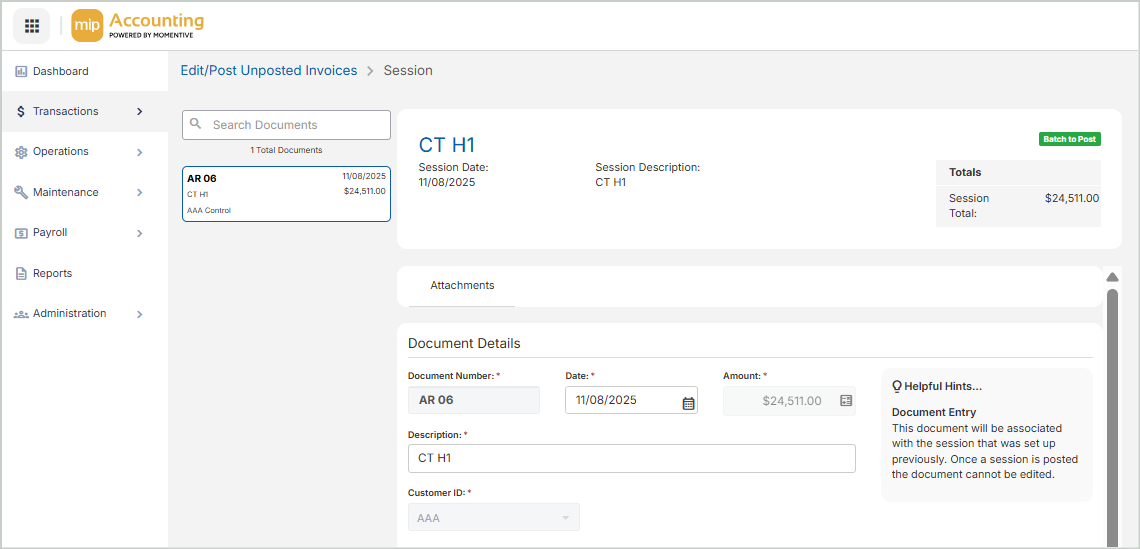
When you select the session ID from the grid, you can view information for each individual document.
Attachments
Select the Attachments tab to view or add attachments to a document.
Document Details
View the document's details here.
Document Number: The document number
Date: Defaults to the date the document was attached to the invoice
Amount: The document amount
Description: The description of the document
Customer ID: The customer ID
Transactions
GL, Fund, and other segments: The segment code for the transaction. Segments were set up when the organization was created.
Restriction: Denotes whether the segment is a Restricted-type segment (1 for Unrestricted, 2 for Restricted). See for more information on restricted segment types.
Debit: The transaction debit amount
Credit: The transaction credit amount
Entry Type: The transaction entry type
Effective Date: The transaction effective date
Description: The description of the transaction
Once you're finished with your edits, select Save. Return to the Edit/Post Unposted Invoices page to post the session.